> ## Documentation Index
> Fetch the complete documentation index at: https://usepike.com/docs/llms.txt
> Use this file to discover all available pages before exploring further.
# Slack
> Connect your Slack workspace and your personal Slack profile to Pike for previews and notifications.
 Slack connects to Pike in **two steps**: first the **workspace** (your Pike organization links to a Slack workspace), then optionally **your personal profile** (your Pike user links to your Slack user). Your Slack account must belong to the **same Slack workspace** that the Pike workspace is connected to.
## Connecting the workspace
Connect the integration from **workspace** settings so Pike can work with your Slack workspace (for example link previews and workspace-wide behaviour).
1. Go to **Workspace settings** -> **Integrations** -> **Slack**
2. Click **Add integration**
3. Complete the steps in the popup to authorise and connect the Slack **workspace**
4. Select which Slack workspace to use with this Pike workspace
You need this connection in place before you can connect your personal Slack profile.
## Connecting your personal Slack profile
After the workspace is connected, link **your** Slack user from **personal** settings. Your Slack profile must be a member of the **same Slack workspace** that is already connected to Pike above.
1. Go to **Settings** -> **Connections**
2. Connect your Slack account and follow the prompts
3. If something fails, confirm the workspace integration is connected under **Workspace settings** -> **Integrations** -> **Slack** and that you are using an account from that same Slack workspace
## Notifications
When your personal Slack profile is connected, you can receive notifications in Slack for activity that involves you. What you get can depend on your notification preferences in Pike, but typically includes:
* **Task assignment** - when you are assigned to a task
* **Project assignment** - when you are added to a project
* **Comment mentions** - when someone @mentions you in a comment
* **Other task and project activity** relevant to you (for example updates on items you follow or participate in)
You can adjust how and where you are notified (including Slack vs email) from your profile and notification settings.
## Syncing and link previews
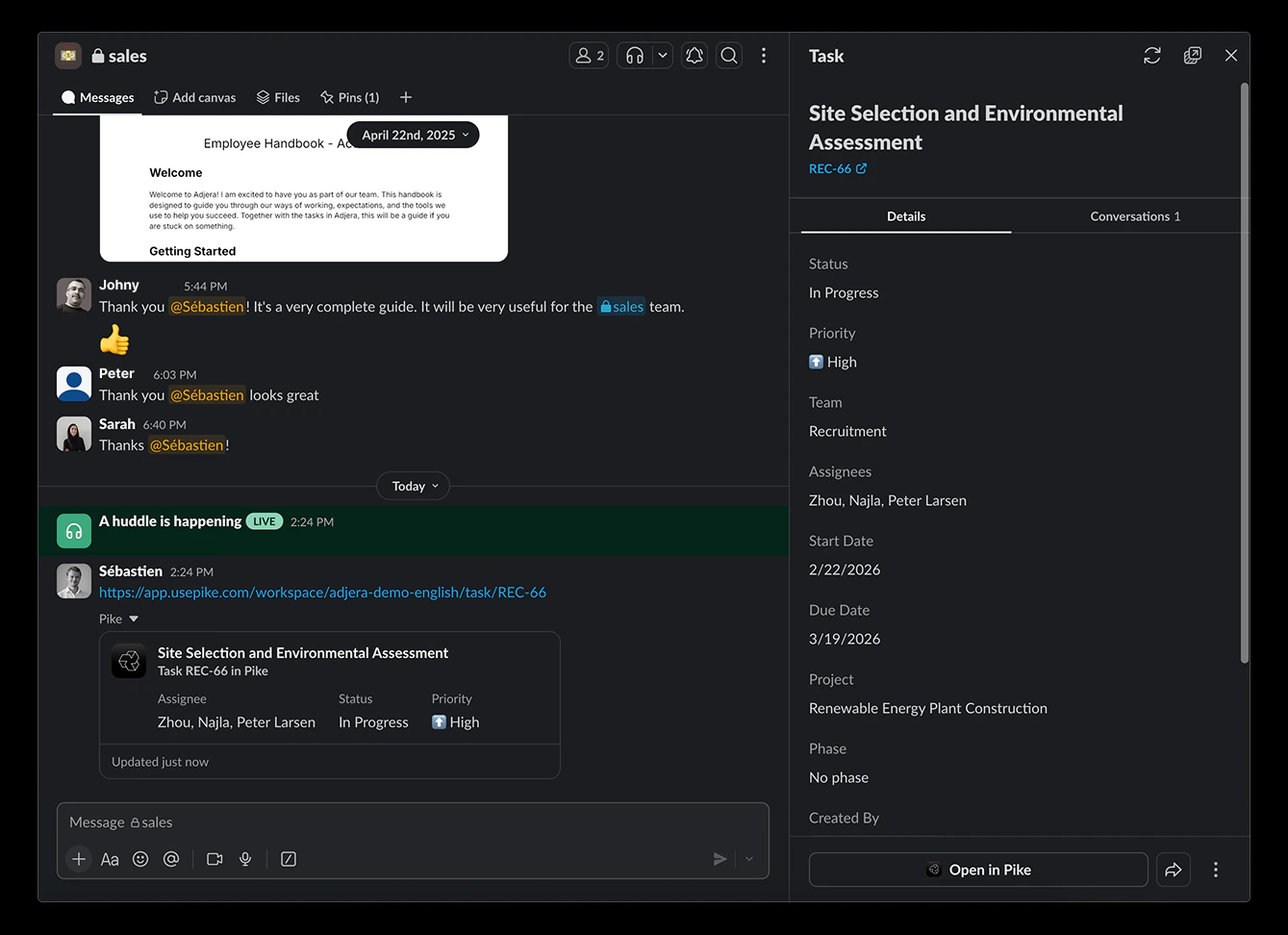
The Slack integration makes it easy to view Pike tasks and their data directly from Slack.
Links from Pike tasks sent in Slack will expand to show a preview with key properties such as description, status, assignee(s), start and due date, project and phase.
Expanded links will include actions when available so that members can update tasks directly from Slack.
Once the preview is live in Slack, refresh it to pull in the latest data from Pike.
Slack connects to Pike in **two steps**: first the **workspace** (your Pike organization links to a Slack workspace), then optionally **your personal profile** (your Pike user links to your Slack user). Your Slack account must belong to the **same Slack workspace** that the Pike workspace is connected to.
## Connecting the workspace
Connect the integration from **workspace** settings so Pike can work with your Slack workspace (for example link previews and workspace-wide behaviour).
1. Go to **Workspace settings** -> **Integrations** -> **Slack**
2. Click **Add integration**
3. Complete the steps in the popup to authorise and connect the Slack **workspace**
4. Select which Slack workspace to use with this Pike workspace
You need this connection in place before you can connect your personal Slack profile.
## Connecting your personal Slack profile
After the workspace is connected, link **your** Slack user from **personal** settings. Your Slack profile must be a member of the **same Slack workspace** that is already connected to Pike above.
1. Go to **Settings** -> **Connections**
2. Connect your Slack account and follow the prompts
3. If something fails, confirm the workspace integration is connected under **Workspace settings** -> **Integrations** -> **Slack** and that you are using an account from that same Slack workspace
## Notifications
When your personal Slack profile is connected, you can receive notifications in Slack for activity that involves you. What you get can depend on your notification preferences in Pike, but typically includes:
* **Task assignment** - when you are assigned to a task
* **Project assignment** - when you are added to a project
* **Comment mentions** - when someone @mentions you in a comment
* **Other task and project activity** relevant to you (for example updates on items you follow or participate in)
You can adjust how and where you are notified (including Slack vs email) from your profile and notification settings.
## Syncing and link previews
The Slack integration makes it easy to view Pike tasks and their data directly from Slack.
Links from Pike tasks sent in Slack will expand to show a preview with key properties such as description, status, assignee(s), start and due date, project and phase.
Expanded links will include actions when available so that members can update tasks directly from Slack.
Once the preview is live in Slack, refresh it to pull in the latest data from Pike.
 Upcoming features: - Create and update tasks from Slack - Comment thread
syncing - Project and customer preview - Pike AI agent
Upcoming features: - Create and update tasks from Slack - Comment thread
syncing - Project and customer preview - Pike AI agent