> ## Documentation Index
> Fetch the complete documentation index at: https://usepike.com/docs/llms.txt
> Use this file to discover all available pages before exploring further.
# Templates
> Create and manage project templates to streamline your workflow
## Overview
Templates in Pike help you standardize your project creation process and ensure consistency across your workspace. With project templates, you can pre-define project structures, tasks, phases, and team assignments that can be reused when creating new projects.
## Project Templates
Project templates allow you to create a blueprint for common project types in your organization. When creating a new project using a template, all pre-defined elements will be automatically created, saving time and ensuring consistency.
### Creating a Project Template
1. Navigate to `Settings` -> `Templates` -> `Project Templates`
2. Click the "Create Template" button
3. Fill in the template details:
* Template name
* Description
* Default project settings
* Tasks and phases
* Team assignments
### Template Components
#### Basic Information
* **Template Name**: A descriptive name for the template
* **Description**: Details about when and how to use this template
* **Category**: Optional grouping for better organization
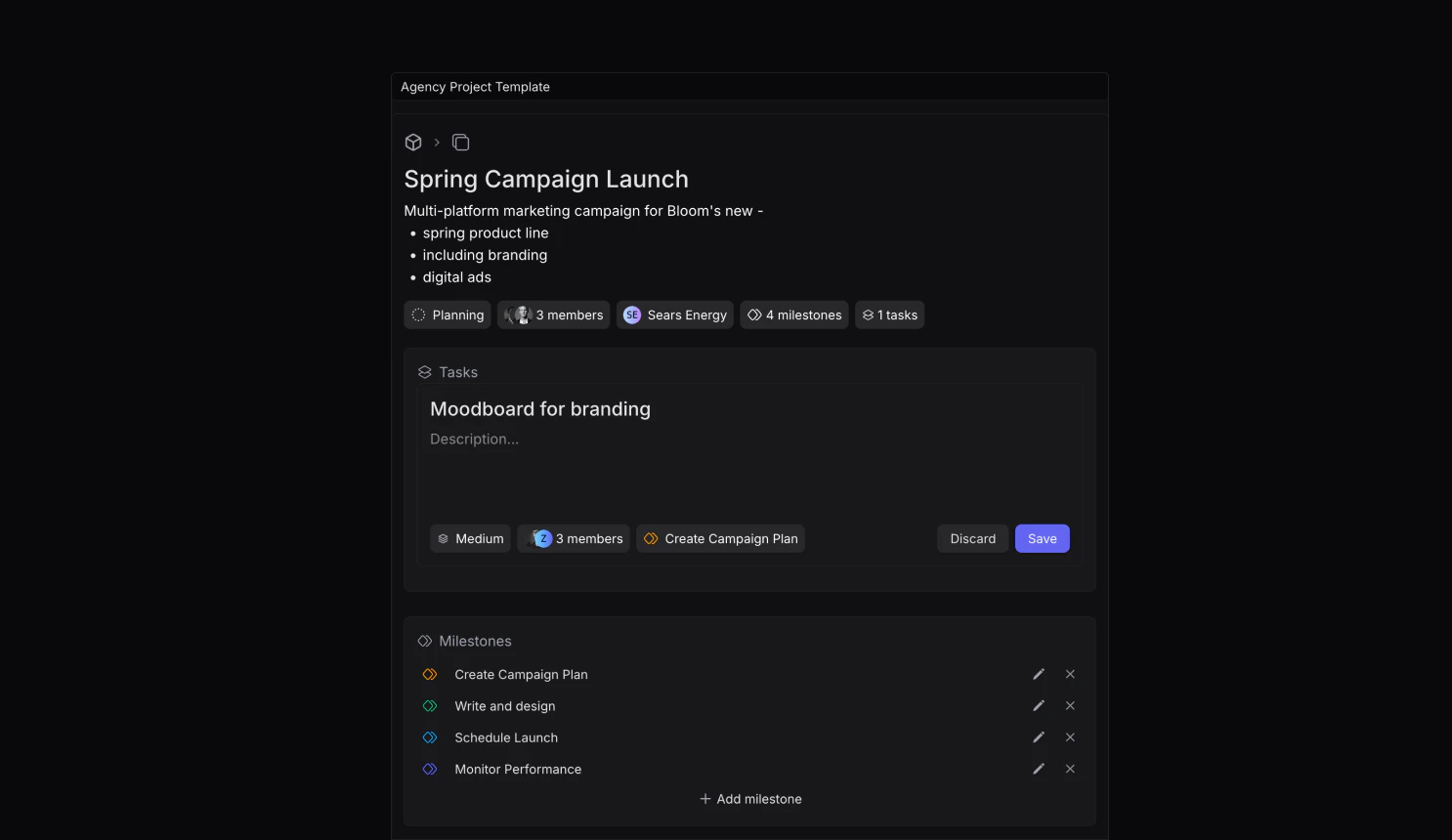 #### Tasks
You can pre-define tasks that will be automatically created when using the template:
* Task name and description
* Priority levels
* Start and due dates
* Team or individual assignments
* Associated phases
* Task dependencies
#### Phases
Create phase structures to help track project progress:
* Phase name
* Target completion date
* Associated tasks
* Dependencies
### Using Templates
1. When creating a new project, if you have templates available, you will see a dropdown to select a template.
#### Tasks
You can pre-define tasks that will be automatically created when using the template:
* Task name and description
* Priority levels
* Start and due dates
* Team or individual assignments
* Associated phases
* Task dependencies
#### Phases
Create phase structures to help track project progress:
* Phase name
* Target completion date
* Associated tasks
* Dependencies
### Using Templates
1. When creating a new project, if you have templates available, you will see a dropdown to select a template.
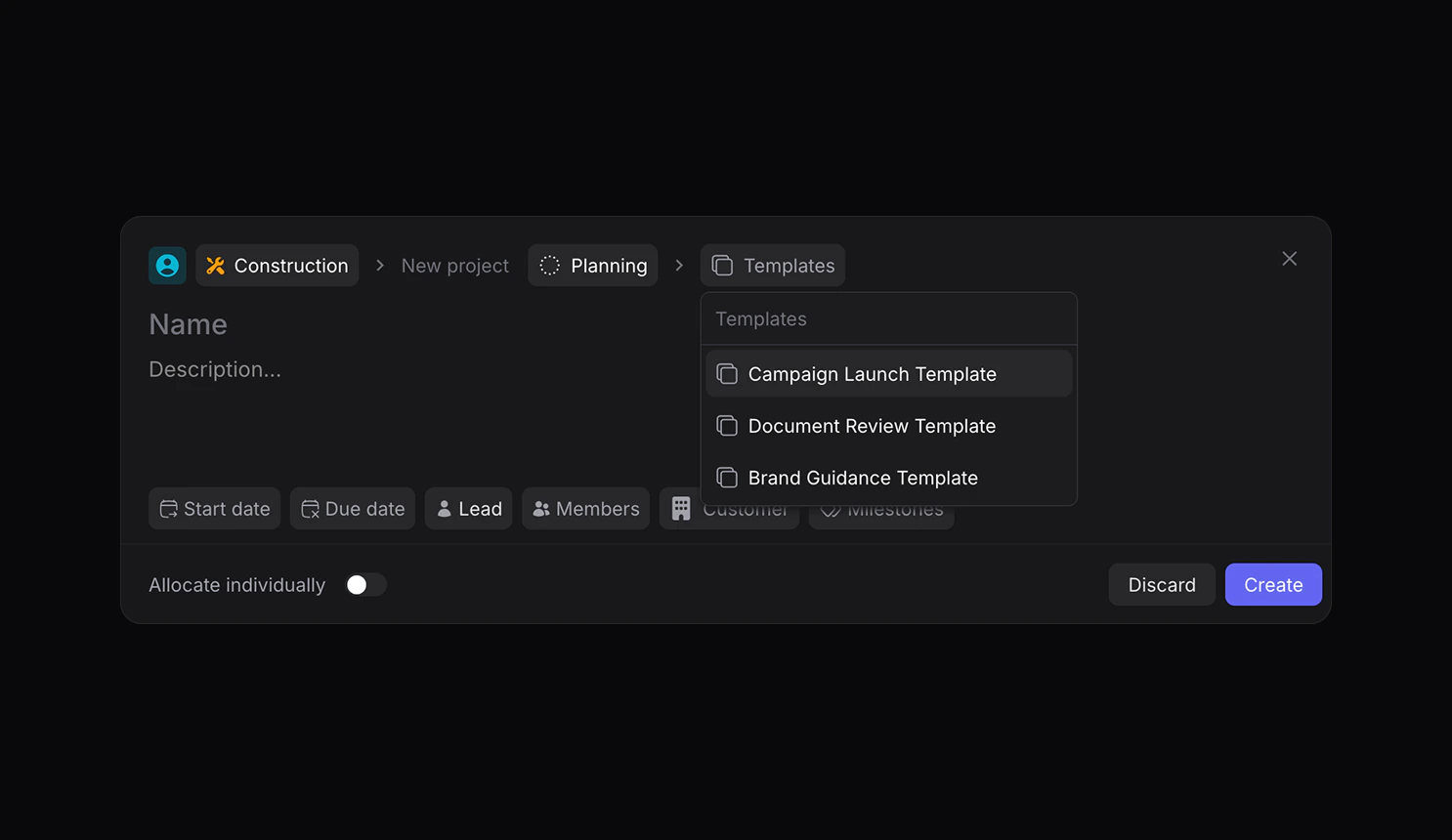 2. Choose the desired template from the list
3. Customize any pre-filled information as needed
4. Click "Create Project"
The new project will be created with all template components, including:
* Pre-defined tasks and phases
* Team assignments
* Start and due dates
* Priority settings
Learn more about projects and creating a project here.
### Managing Templates
Templates can be managed from the Settings page:
* Edit existing templates
* Duplicate templates for variations
* Archive unused templates
* Set default templates for project types
### Best Practices
1. **Start Simple**: Begin with basic templates and expand them based on usage
2. **Regular Updates**: Review and update templates based on project learnings
3. **Standardize Naming**: Use consistent naming conventions for tasks and phases
4. **Document Usage**: Include clear descriptions of when to use each template
5. **Team Input**: Gather feedback from project managers and teams to improve templates
## Template Permissions
Access to template management is controlled by user roles:
* **Admins**: Full access to create, edit, and delete templates
* **Managers**: Can use templates
## Related Features
* [Project Management](/projects)
* [Task Management](/tasks)
* [Team Management](/teams)
* [Resource Planning](/resource-planning)
2. Choose the desired template from the list
3. Customize any pre-filled information as needed
4. Click "Create Project"
The new project will be created with all template components, including:
* Pre-defined tasks and phases
* Team assignments
* Start and due dates
* Priority settings
Learn more about projects and creating a project here.
### Managing Templates
Templates can be managed from the Settings page:
* Edit existing templates
* Duplicate templates for variations
* Archive unused templates
* Set default templates for project types
### Best Practices
1. **Start Simple**: Begin with basic templates and expand them based on usage
2. **Regular Updates**: Review and update templates based on project learnings
3. **Standardize Naming**: Use consistent naming conventions for tasks and phases
4. **Document Usage**: Include clear descriptions of when to use each template
5. **Team Input**: Gather feedback from project managers and teams to improve templates
## Template Permissions
Access to template management is controlled by user roles:
* **Admins**: Full access to create, edit, and delete templates
* **Managers**: Can use templates
## Related Features
* [Project Management](/projects)
* [Task Management](/tasks)
* [Team Management](/teams)
* [Resource Planning](/resource-planning)