> ## Documentation Index
> Fetch the complete documentation index at: https://usepike.com/docs/llms.txt
> Use this file to discover all available pages before exploring further.
# Action Button
> Quick-create tasks and time entries from the sidebar.
The action button at the top of your sidebar, is where you can create tasks and time entries at all times in just a few clicks.
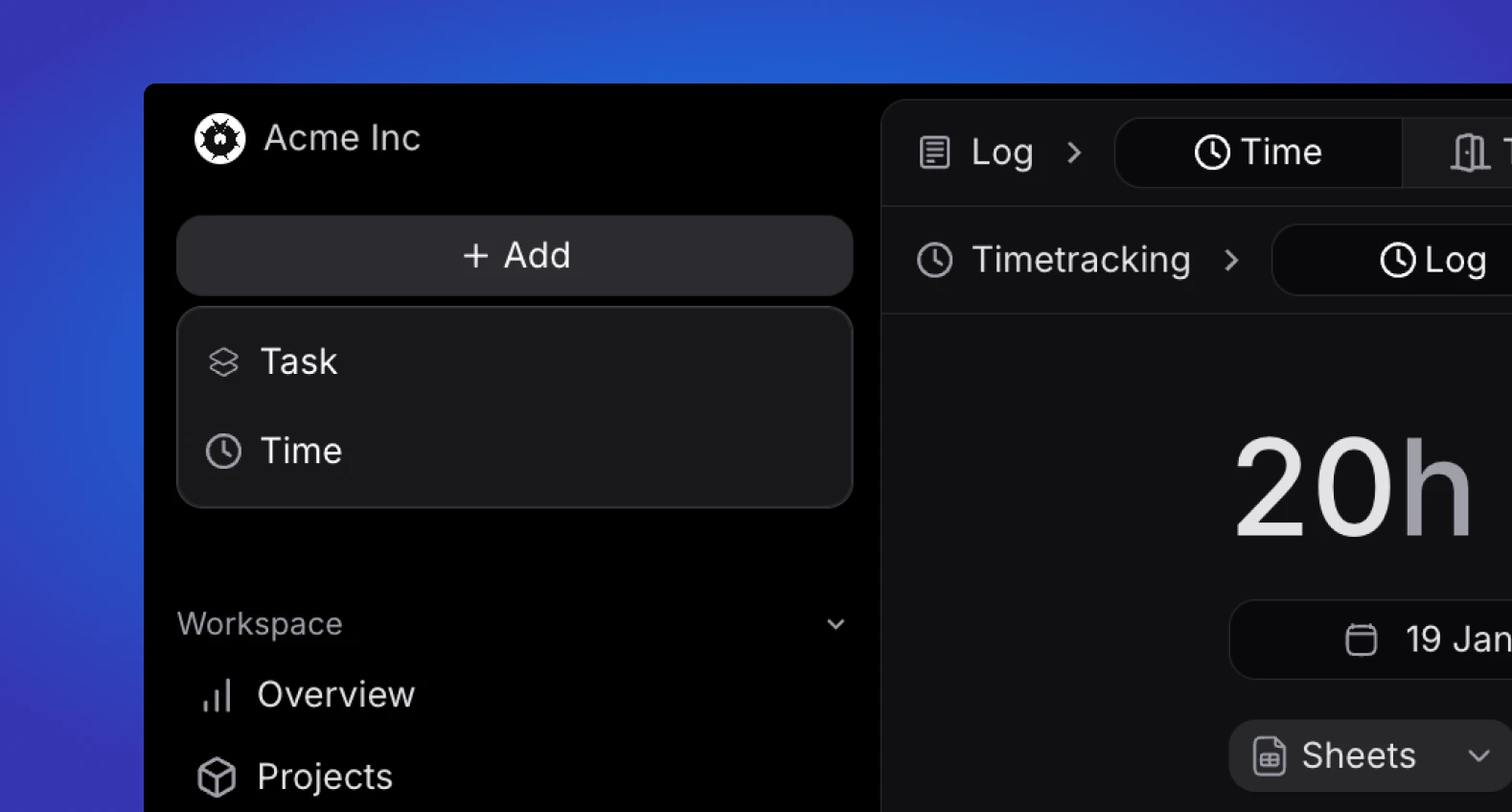 ## Task creation
Create a task from anywhere.
If you are in a project view, the task created from here will be autofilled with relevant data for that particular project.
## Time entry
Quickly add a time entry from anywhere.
## Task creation
Create a task from anywhere.
If you are in a project view, the task created from here will be autofilled with relevant data for that particular project.
## Time entry
Quickly add a time entry from anywhere.
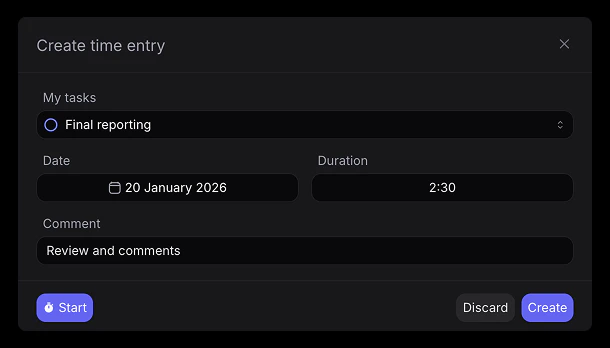 * Select your task (sorted by status)
* Select when you want the time entry to be dated (default to todays date)
* Select manually how long you want to register or choose "Start" to start a time tracker for the selected task.
* Select your task (sorted by status)
* Select when you want the time entry to be dated (default to todays date)
* Select manually how long you want to register or choose "Start" to start a time tracker for the selected task.