> ## Documentation Index
> Fetch the complete documentation index at: https://usepike.com/docs/llms.txt
> Use this file to discover all available pages before exploring further.
# My tasks
> Tasks assigned to you in one place.
View all tasks assigned to you in a single view.
 ## Overview
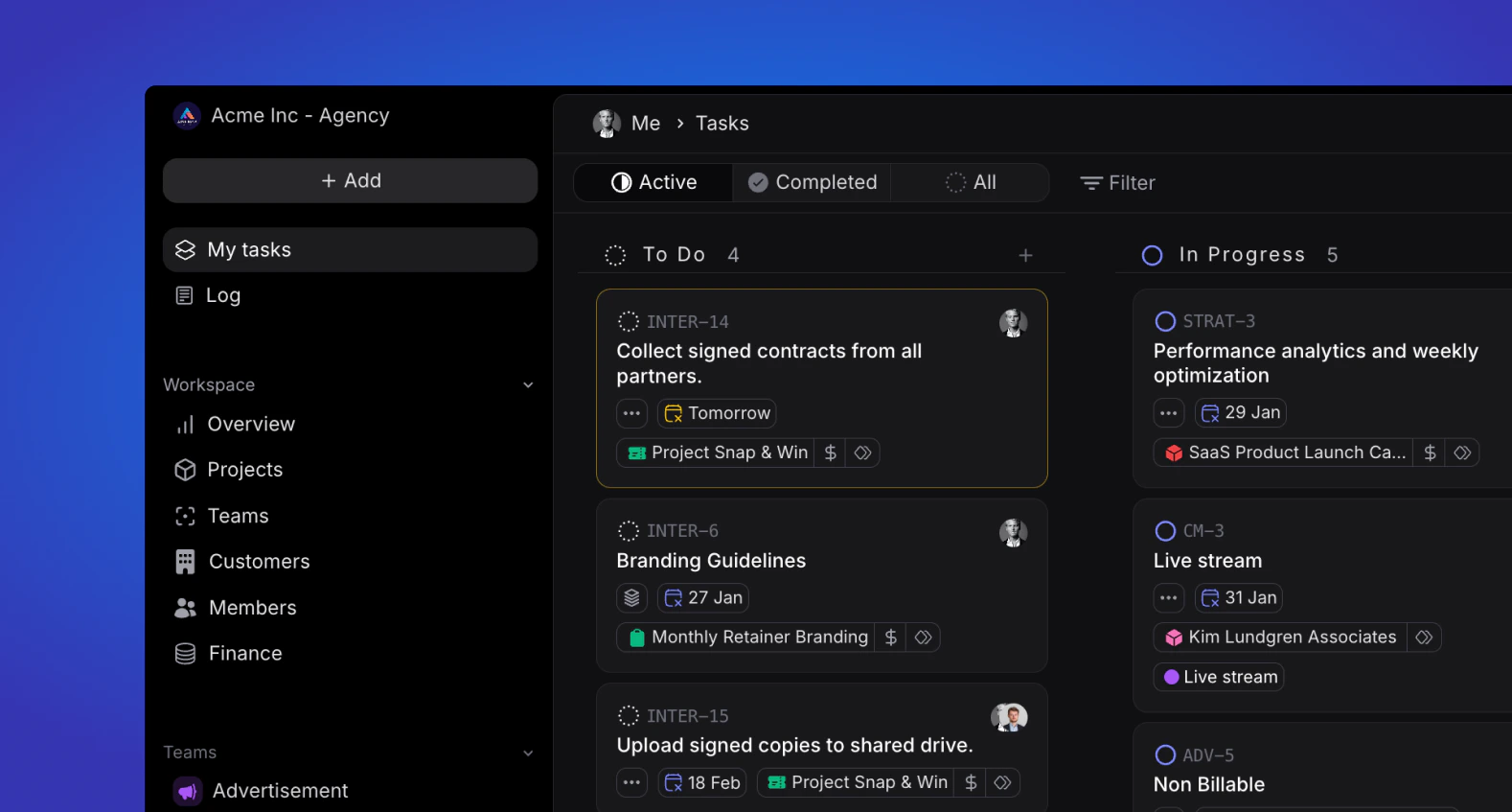
My tasks is where you will get up to speed on what you need to work on, at any given time. You can view your tasks in two ways: Board and List.
In each of these views, you can filter what tasks to display in order to get a more curated display and sort the ordering and grouping.
By default, you will view all "Active" tasks and have tasks grouped by Status and Sorted by "Due Date"
You can change the grouping and sorting of your tasks in the top-right corner of the window; you can learn more about these options in Views.
### Learn More About Tasks
Quickly create new tasks.
Easily edit tasks to update details.
A variety of ways to view, sort, group and filter tasks.
Essential details for effective task management.
## Overview
My tasks is where you will get up to speed on what you need to work on, at any given time. You can view your tasks in two ways: Board and List.
In each of these views, you can filter what tasks to display in order to get a more curated display and sort the ordering and grouping.
By default, you will view all "Active" tasks and have tasks grouped by Status and Sorted by "Due Date"
You can change the grouping and sorting of your tasks in the top-right corner of the window; you can learn more about these options in Views.
### Learn More About Tasks
Quickly create new tasks.
Easily edit tasks to update details.
A variety of ways to view, sort, group and filter tasks.
Essential details for effective task management.