> ## Documentation Index
> Fetch the complete documentation index at: https://usepike.com/docs/llms.txt
> Use this file to discover all available pages before exploring further.
# Projects
> Browse projects in list or timeline view from the sidebar.
View all projects you are part of in either a list or timeline view.
 ## Overview
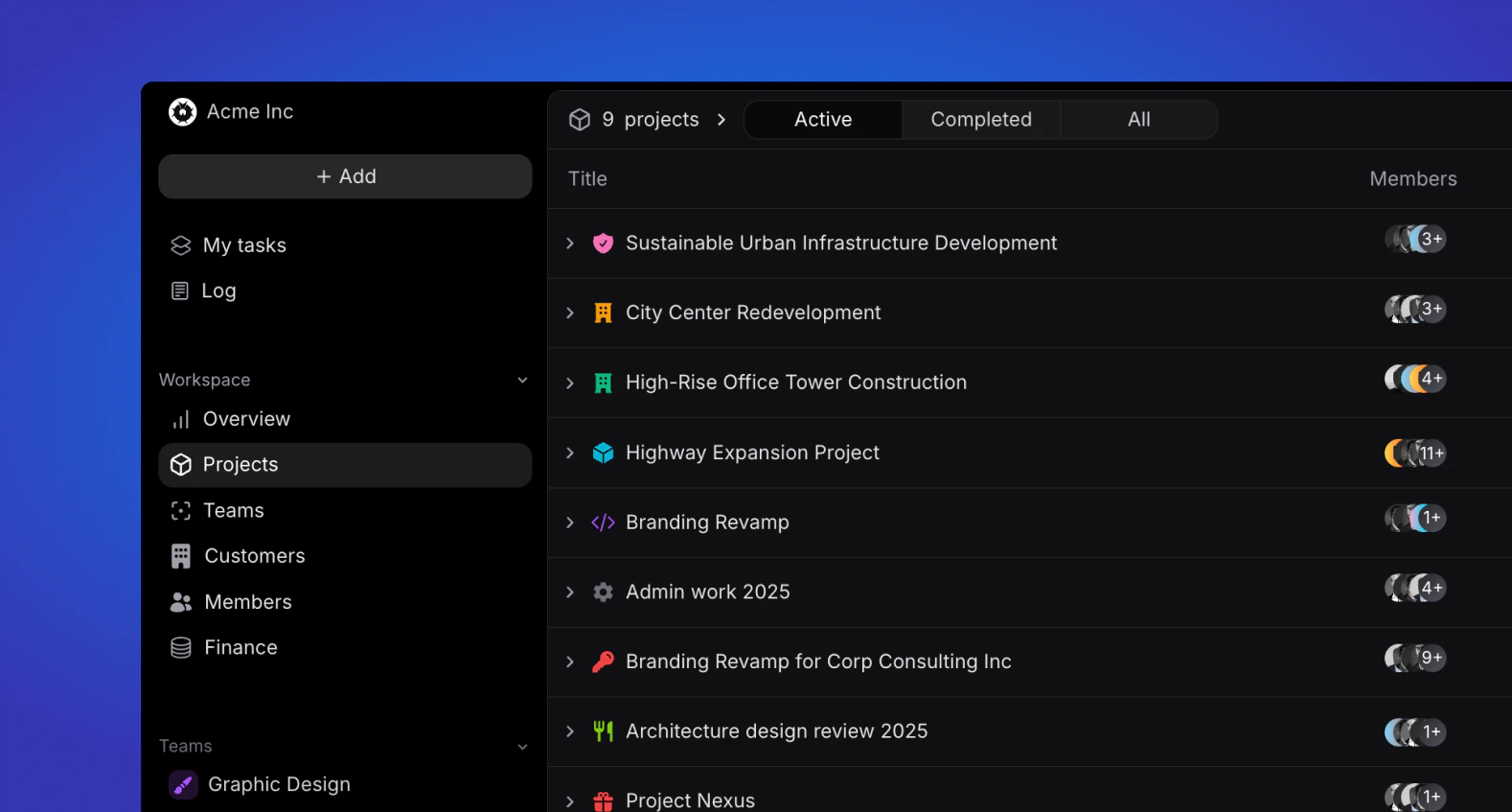
View all company projects, sorted by **Active, Completed and All**.
Only admin and managers can view all workspace projects, while other roles can only view projects they are part off.
### Project information
Each project will show the following information at a glance:
* Project icon
* Project name
* Project members icon
* Project team(s)
* Project status (planning, active, on hold, completed or cancelled)
* Project due date
When expanding the project line using the arrow **>** at the far left, all associated project phases will appear, showcasing the following:
* Phase icon and colour (will be reflected in the timeline)
* Phase name
* Phase start and due date
### Search
In the top right of the project overview, users can search for projects based on their names.
### Display
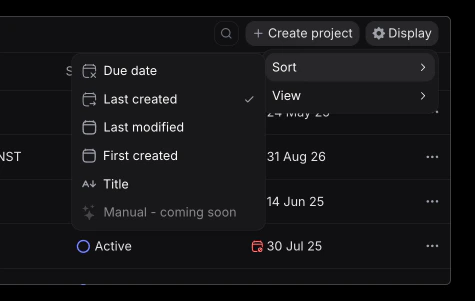
The display button allows you to sort your project list and change between views.
## Overview
View all company projects, sorted by **Active, Completed and All**.
Only admin and managers can view all workspace projects, while other roles can only view projects they are part off.
### Project information
Each project will show the following information at a glance:
* Project icon
* Project name
* Project members icon
* Project team(s)
* Project status (planning, active, on hold, completed or cancelled)
* Project due date
When expanding the project line using the arrow **>** at the far left, all associated project phases will appear, showcasing the following:
* Phase icon and colour (will be reflected in the timeline)
* Phase name
* Phase start and due date
### Search
In the top right of the project overview, users can search for projects based on their names.
### Display
The display button allows you to sort your project list and change between views.
 #### Sorting
Sort the order of your projects by:
* Due date
* Last created
* Last modified
* First created
* Alphabetical order (title)
#### Views
Change between list and timeline view.
The list view is th default one, showing projects and phases as described above.
The timeline view, showcases each project on a timeline, with it's associated phases below.
Learn more about projects and their structure.
Learn how private project visibility works.
#### Sorting
Sort the order of your projects by:
* Due date
* Last created
* Last modified
* First created
* Alphabetical order (title)
#### Views
Change between list and timeline view.
The list view is th default one, showing projects and phases as described above.
The timeline view, showcases each project on a timeline, with it's associated phases below.
Learn more about projects and their structure.
Learn how private project visibility works.