> ## Documentation Index
> Fetch the complete documentation index at: https://usepike.com/docs/llms.txt
> Use this file to discover all available pages before exploring further.
# Teams
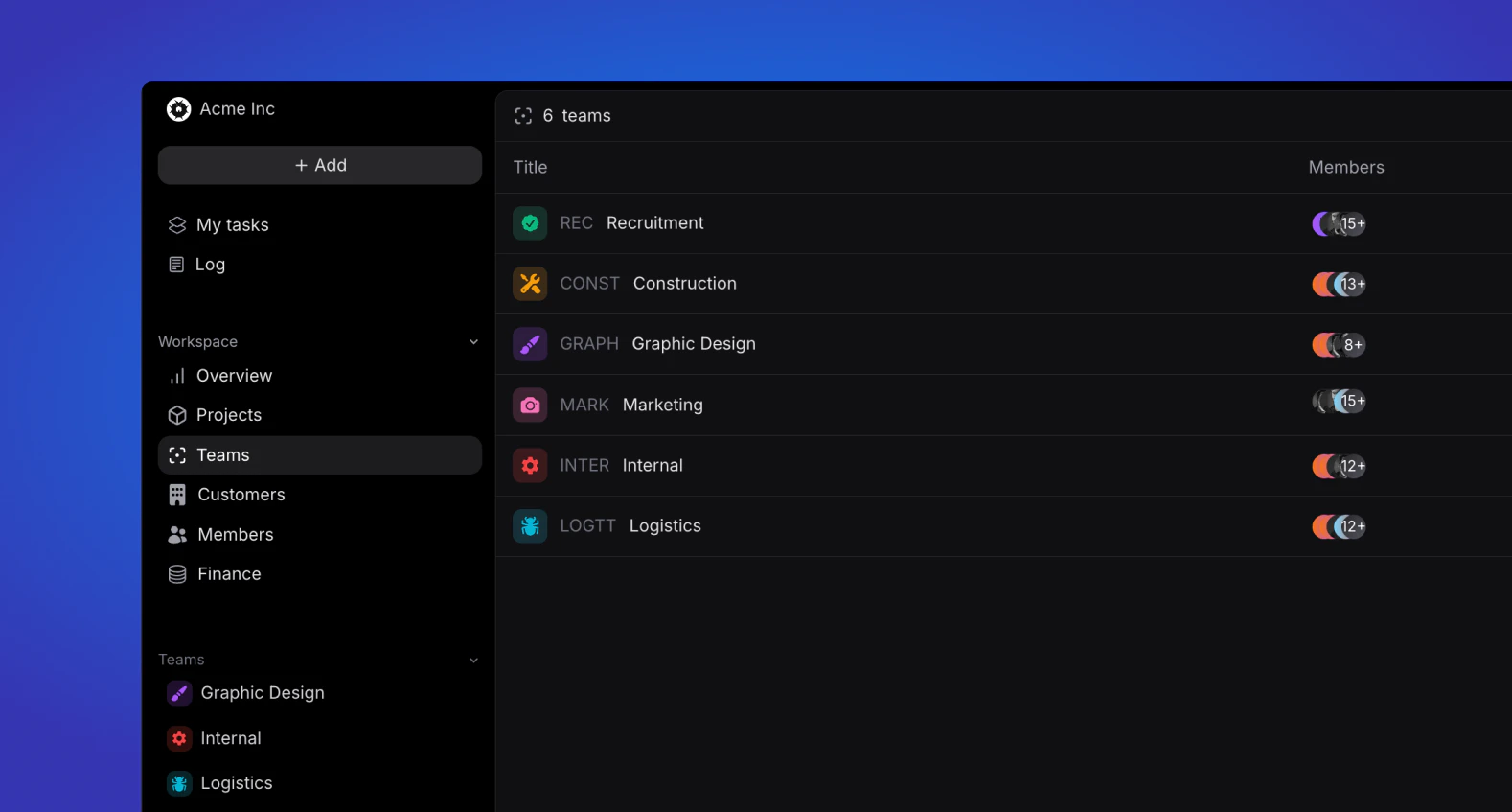
> See teams you belong to from the sidebar.
View all teams you are part of.
 ## Overview
Depending on your user role, the team(s) you are part off will appear in your sidebar in either of two ways: as a list view or a dropdown.
## List view
Every user role except for Basic and Guest will have access to view the teams they are a part of and if you are an Admin, Manager or HR user, you will be able to view and edit all teams in your workspace.
## Dropdown
All roles have access to the dropdown view.
This view is always at the bottom of your sidebar, and only shows the teams you are part of.
Expanding a team will give you an option to view all Team tasks and Projects.
Depending on your role, you will have certain read and write permissions. Learn more about these permission here.
Learn more about team structure and properties.
## Overview
Depending on your user role, the team(s) you are part off will appear in your sidebar in either of two ways: as a list view or a dropdown.
## List view
Every user role except for Basic and Guest will have access to view the teams they are a part of and if you are an Admin, Manager or HR user, you will be able to view and edit all teams in your workspace.
## Dropdown
All roles have access to the dropdown view.
This view is always at the bottom of your sidebar, and only shows the teams you are part of.
Expanding a team will give you an option to view all Team tasks and Projects.
Depending on your role, you will have certain read and write permissions. Learn more about these permission here.
Learn more about team structure and properties.