
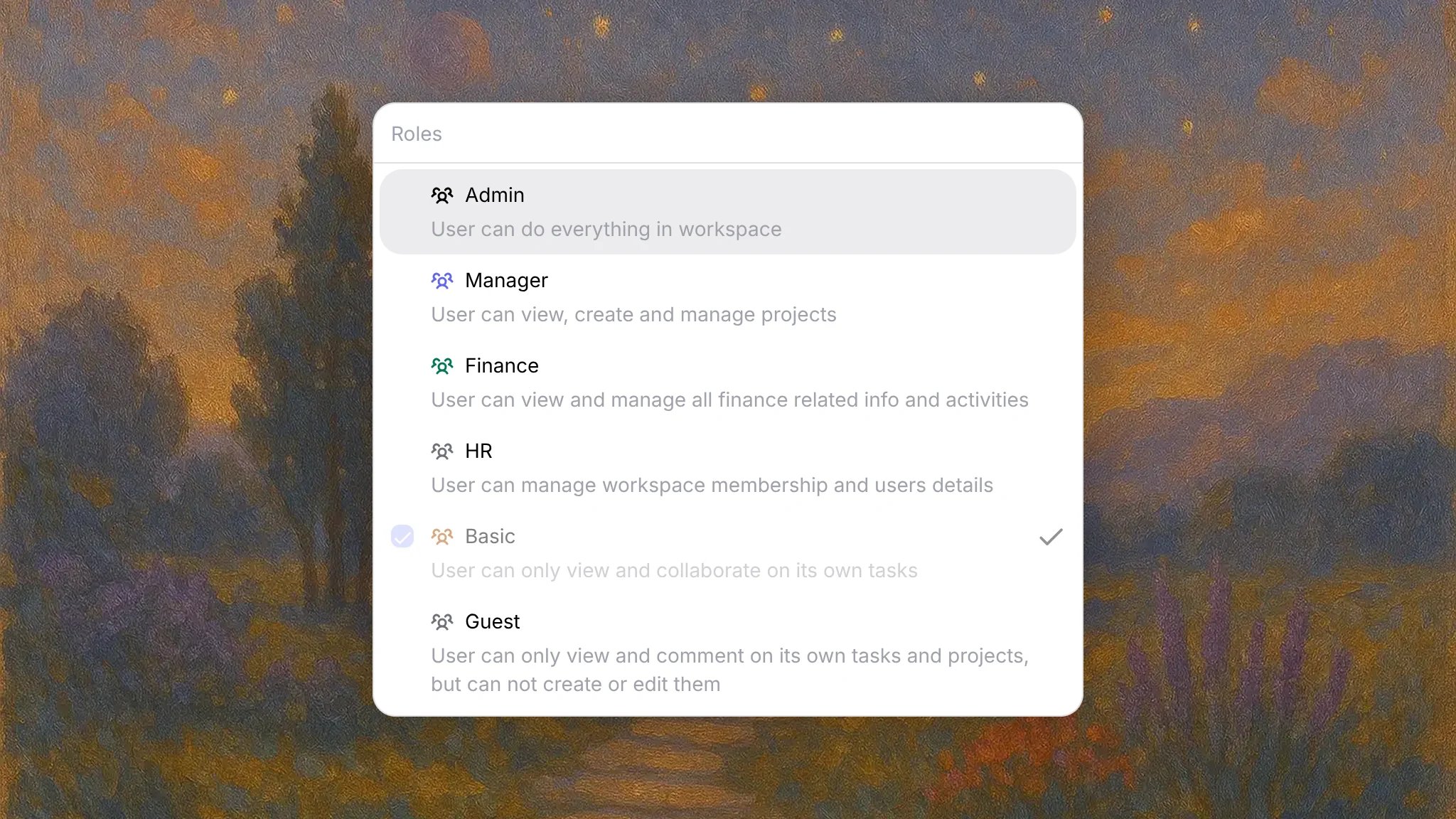
Every workspace user has one or more roles that set what they can do in Pike. Admins and HR assign roles from the member profile or the invite dialog. Click the roles on a member’s profile to change them. Roles menu on a member profile: Admin, Manager, Finance, HR, Basic and Guest with their descriptions, Basic checked

Roles

For detailed capabilities per role and how roles interact with private projects, see Workspace roles. For what each role sees in the sidebar, see Workspace roles and sidebar access.

Virtual user

Invite a member as a virtual user to plan with them before, or without, giving access. A virtual user gets no invitation and cannot access the workspace until an admin or HR uses Convert to regular user in the member’s row menu. You can still set a virtual user’s skills, position, cost, and capacity, and assign them to teams, projects, and tasks.

Action restrictions

Users may occasionally see controls they cannot use. Unauthorized actions return an error such as “You don’t have permission to perform this action. Please contact your workspace admin.” Pike checks permissions on every action and at the API level, and logs access attempts.