
Sheets
Sheets is a weekly timesheet of the tasks you work on, grouped by project, with one column per day.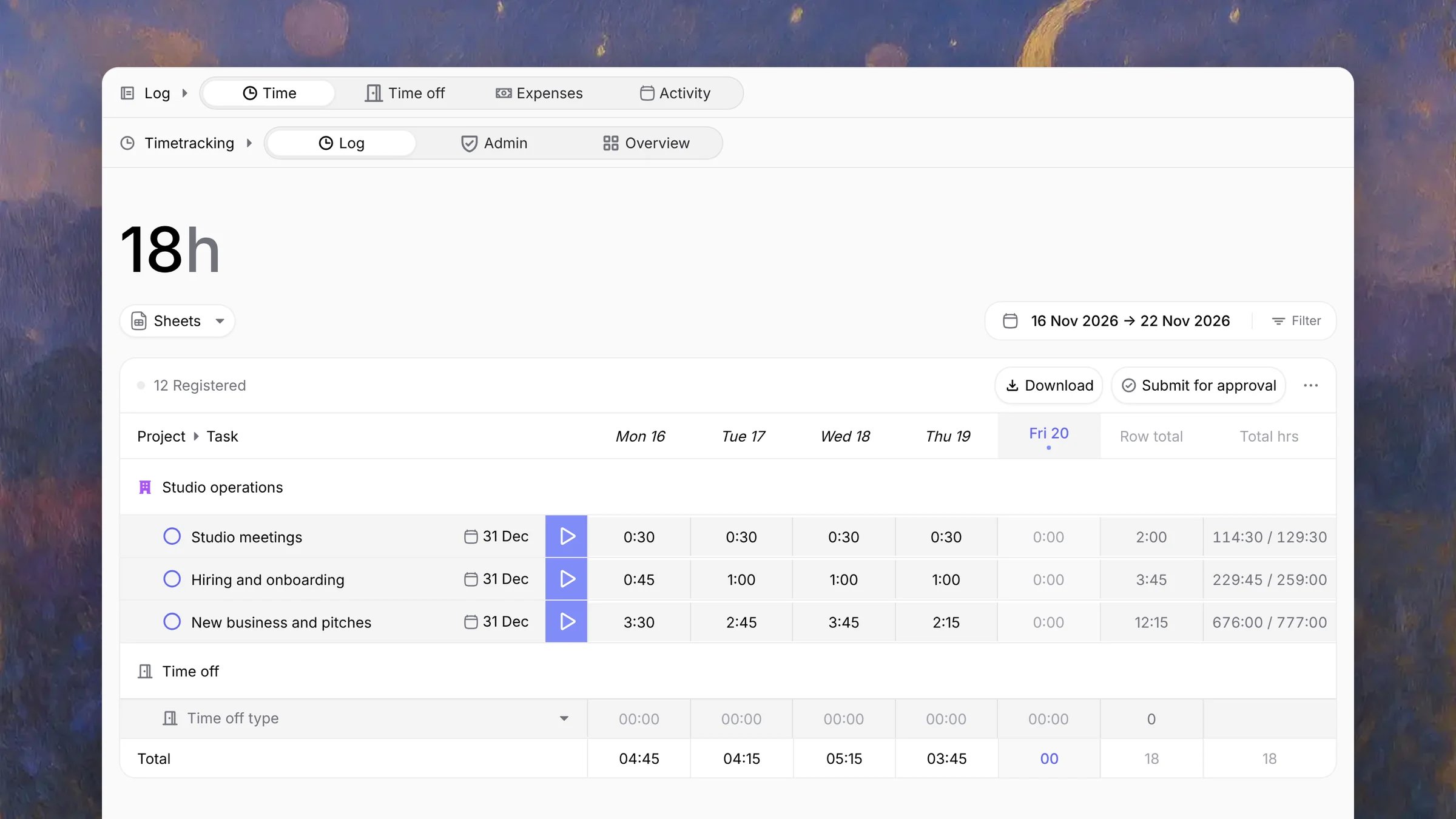
- Click a cell to log time on that task and day. With a default comment set, the entry starts with it.
- Row total sums the week. Total hrs shows the hours logged on the task against the hours planned on it. Hover a total to see registered against allocated hours, and how far over the plan you are.
- The Time off row lets you request time off for a day straight from the sheet.
- The strip above the table counts your entries by status, for example 12 Registered.
- Download exports the sheet. The ⋯ menu has Show weekends and Show only active tasks.
List
Switch Sheets to List for one row per entry, with Time (duration and date), Task, Comment and approval status. Use a row’s menu to Edit or Delete an entry, or Stop a running timer.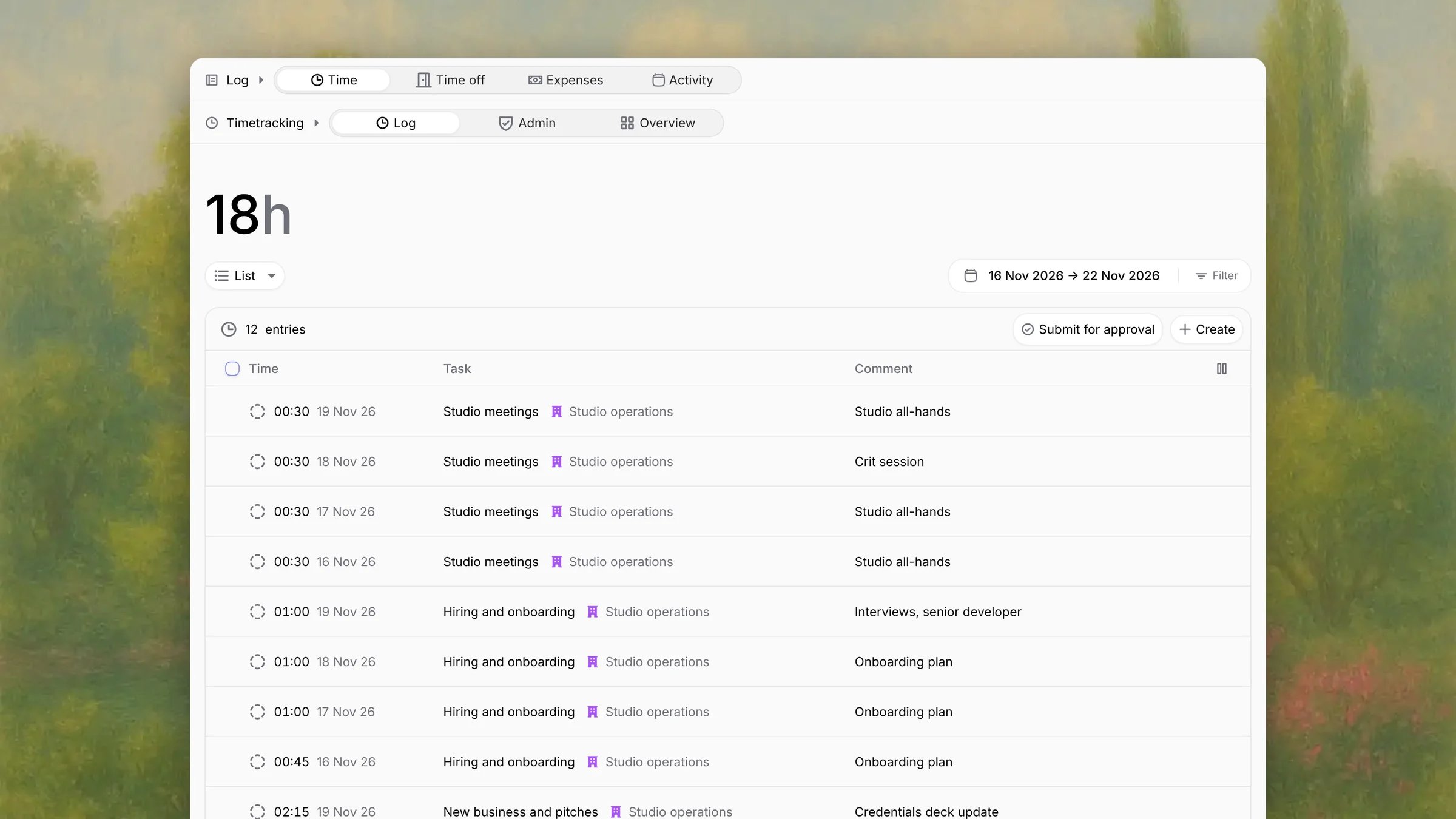
Create an entry
Click Create in the List view, or use Add Time in the sidebar, to open Create time entry.- Pick the task under My tasks. It lists the tasks you are allocated to.
- Set the Date. It starts on today.
- Type the Duration as hours and minutes, for example 1:30.
- Add a Comment. It is required when the workspace requires comments.
- Click Create.
Timer
Click Start in Create time entry, or the play button on a row in Sheets, to time the work instead. One timer runs at a time, and it continues if you close Pike. The running timer appears under Add in the sidebar. When you stop it, the entry form opens so you can check it and add a comment.Submit for approval
When your week is done, click Submit for approval. It submits every entry in the selected range that is not submitted yet, or was rejected, after you confirm.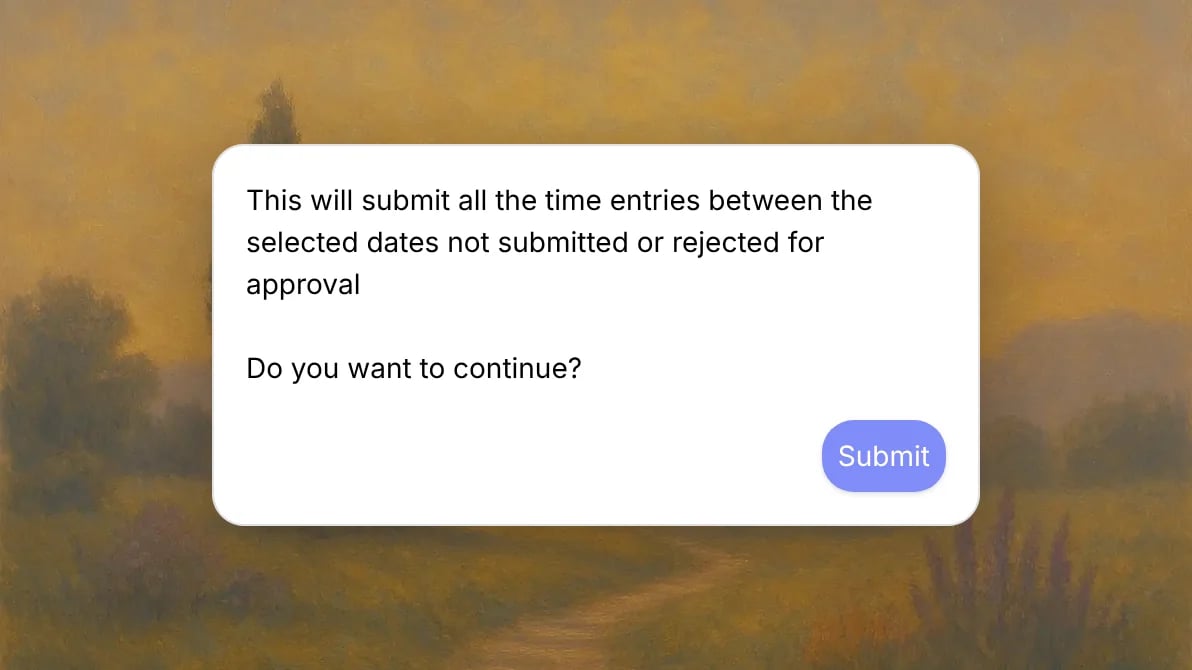
Comment settings
Admins set how comments work in Workspace settings Time tracking.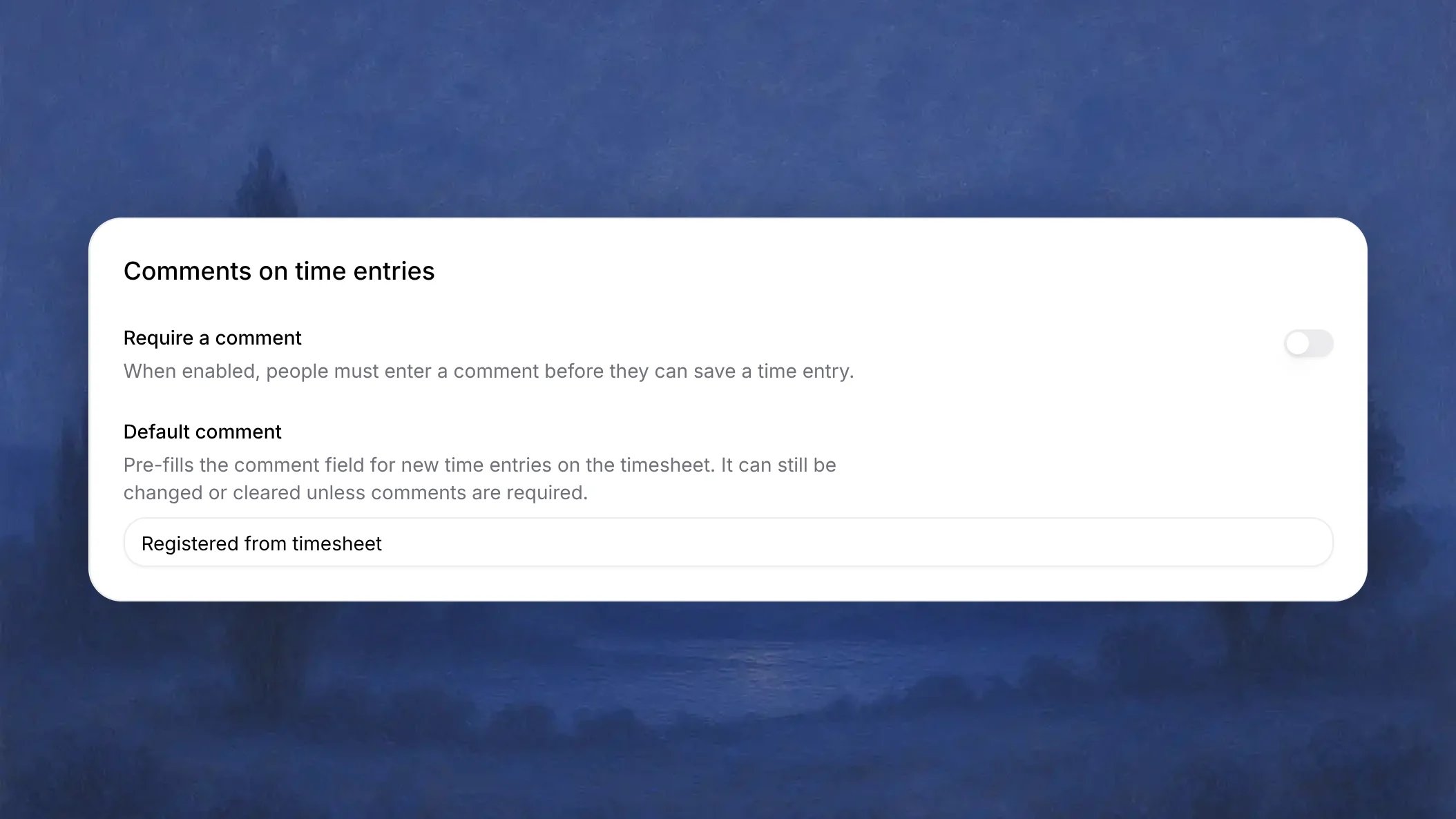
Time entries from allocations
Pike can turn allocations into draft time entries, so planned hours become a starting point for the timesheet. Turn it on in Workspace settings Time tracking. In the Allocations section, switch on Create time entries from allocations: “When on, new member allocations create draft time entries for each allocated day. You can still turn this off on a single booking. Drafts stay in sync until they are submitted.” For a single booking, the allocation dialog has a Create time entries toggle that defaults to the workspace setting. How drafts behave:- Pike creates one draft per allocated day with the allocated hours, for the allocated member and task, using the workspace default comment.
- Changing the allocation updates its drafts. Removing days or deleting the allocation removes them.
- Entries that are submitted, approved, rejected, invoiced, or running are never touched.
- Position (unstaffed) allocations never create entries.
Good habits
- Log daily for accurate tracking.
- Write descriptive comments. Summarize in Time admin turns them into an update on completed work.
- Review your week in the Sheets view.
- Submit entries for approval regularly.