
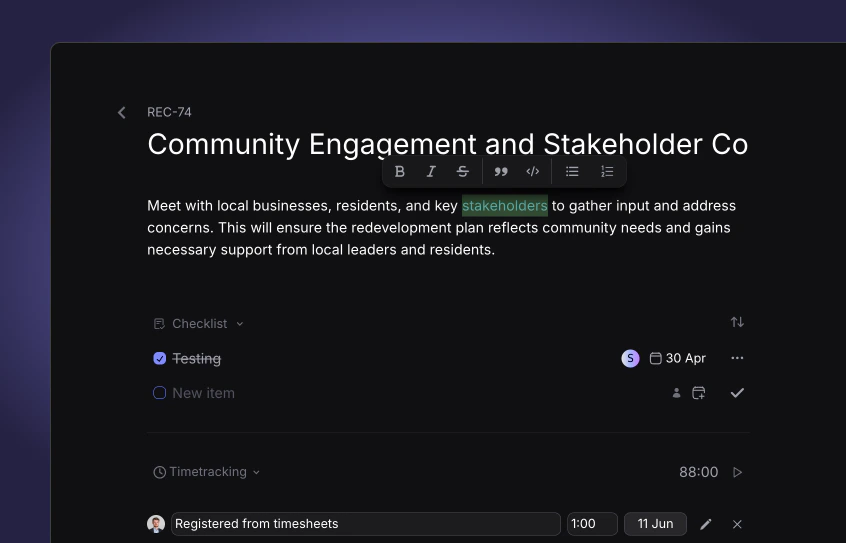
Quick edit
From Board or List, edit on the task card without opening the full page:- Assignee(s)
- Priority
- Labels
- Due date
Task sidebar
Click a task card in Board, List, or Timeline to open the sidebar. You can edit everything in quick edit plus:- Title and description
- Start and due dates
- Phase
- Billable status
- Time entries (admins and managers can edit all members’ entries; other roles edit their own)
- Checklist items
- Allocations (when the task has a project)
Task page
Expand a task for the full page view. In addition to sidebar fields you get:- Attachments
- Dependencies
- Allocations section (same as the sidebar)
Assignments
Use Assigned to on the properties panel to add members or open positions from the picker. Each member or position can only appear once on the task.Placeholder positions
Pick a position when you know the role but not the person yet. The position shows with a position icon on boards and lists. When someone is hired, click Assign on the position row in Allocations (or change the assignee in Assigned to). Pike replaces the position with the member. If allocation blocks already exist, confirm the move so planned hours stay on the task under the new assignee.Resources
Project team, timeline, and all resource allocation docs.
How to allocate
Full workflow: capacity %, placeholder positions, and conversion.
Members
Define positions under Members → Settings.
Allocations
When the task belongs to a project, the Allocations section sits below the description. It groups blocks by assignee and shows hours per day or week, date range, and totals.- + on a row: add an allocation for that member or position
- Allocate assignee: pick a new assignee and open the allocation dialog
- Click a block or Edit: change dates and hours; Delete removes the block
Allocate by capacity
For a member row, open the dialog and use the % toggle to enter share of capacity. The member needs a contract with capacity in that period. See How to allocate.Allocate to a position
For a position row, use h or per-weekday mode only. After you save, the block appears on the workspace timeline under that position. Convert the position to a member when the role is filled. The dialog matches Members → Resource allocation, including time-off callouts for members.Allocation properties
Hours modes and allocation fields.