
Resources
Project team, timeline, and overview of resource allocation.
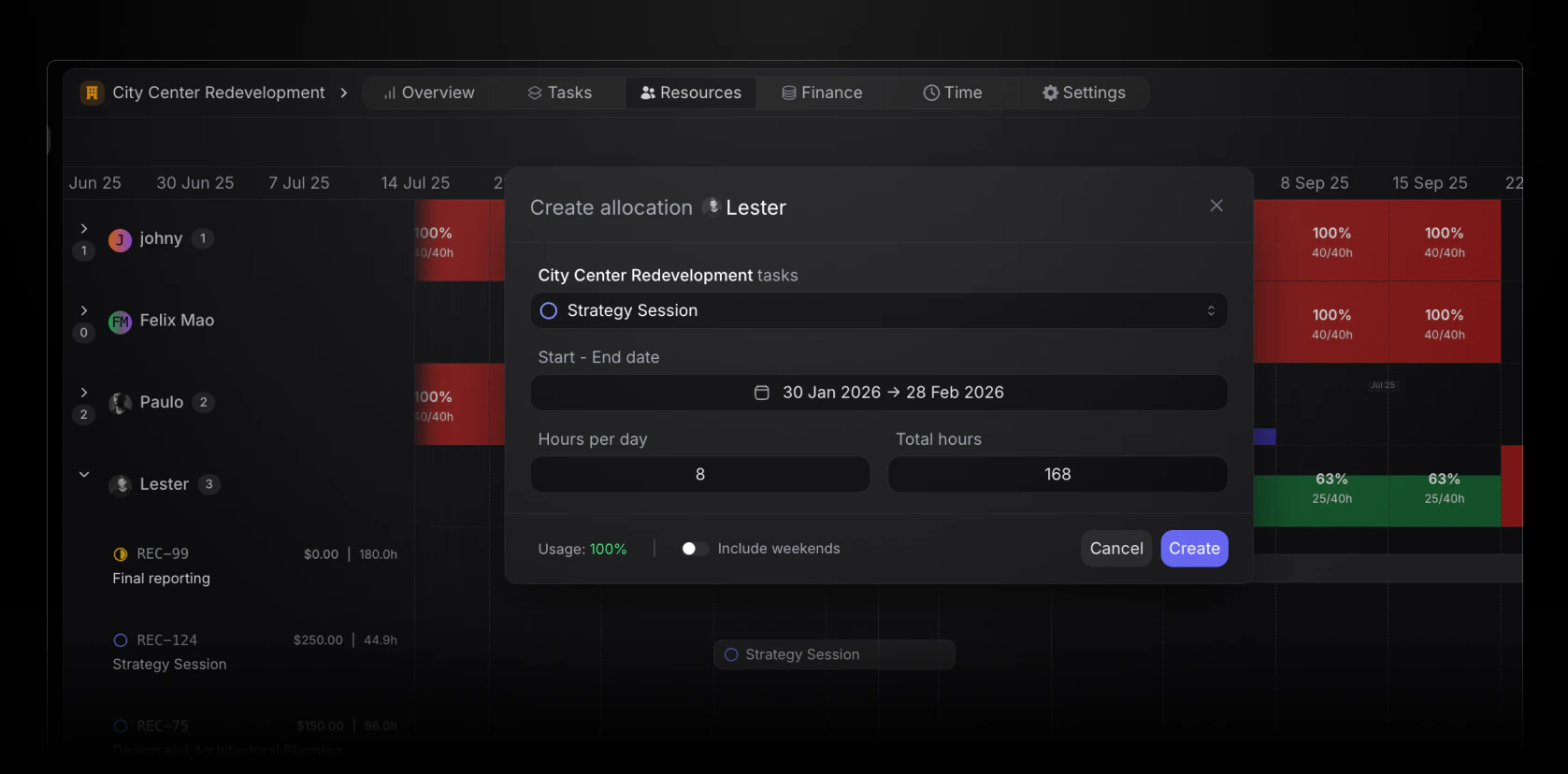
Task and project
When the dialog is opened from Members → Resource allocation or a project Resources tab, pick the project and task first. The task list is sorted by status (to do, in progress, under review, completed, backlog, and cancelled). From a task’s Allocations section, the task is already set. You only choose dates and hours.Allocation period
Every allocation needs a start date and end date. You can add multiple allocation blocks for the same member or position on the same task when the periods differ.Hours
Use the h, %, or calendar toggle above the amount field to switch how you enter time.
Pike converts between modes when you switch. Your work is preserved rather than reset. The summary line below the fields spells out what the entry means (for example total hours, hours per day, hours per week, or share of capacity). Percentages over 100% appear in red.
Share of capacity
% mode uses the member’s employment contract for the selected dates. When contracted capacity is zero in that period, Pike shows a callout and keeps you in hours mode until capacity exists. Position assignees use hours and hours per weekday only. Capacity percentage applies to members with a contract.Hours per weekday
Turn individual weekdays on or off and enter hours for each active day (up to 24 hours per day). Weekend days can be included; those hours are saved on the allocation but do not count toward utilization in the workspace capacity view yet.Usage summary
The footer of the dialog shows how the new block fits alongside existing allocations in the period: total hours and share of capacity where it applies.Weekends
When you use total hours or % mode, choose whether weekends count as working days in the spread. Per-weekday mode controls weekends by selecting those days in the grid.Member time off
For members, approved and pending time off (not rejected) appears in a callout when it overlaps the allocation period. You can still save the allocation; those days do not change how utilization is calculated for that member.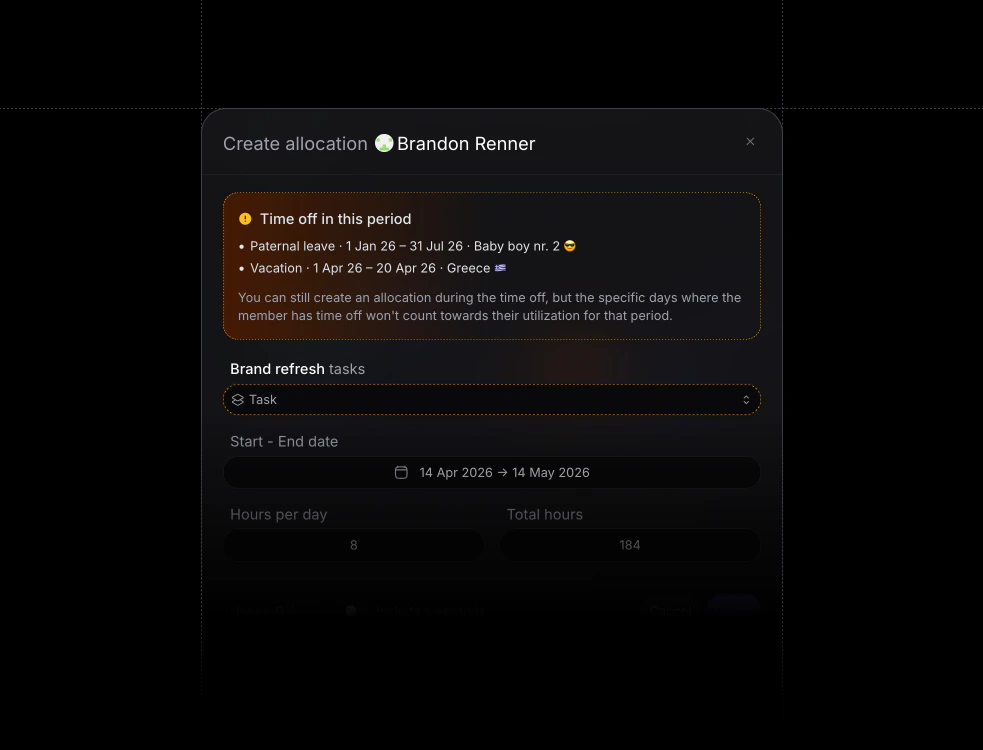
Workspace capacity
Heatmap, timeline, and how available vs allocated hours roll up.