
Make a project private
When creating
In New project, open ⋯ (more options) and turn on Private project.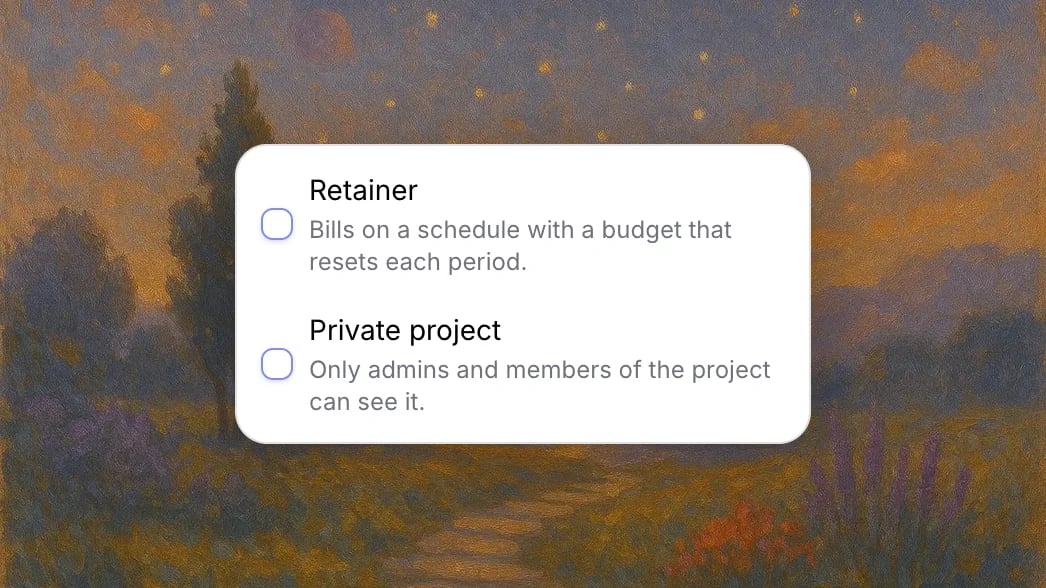
On an existing project
Open the project menu (⋯ at the top right) and click Change privacy, then confirm Make this project private? with Make project private. A private project shows a Private badge on its overview. Point to it to read who can see the project, and click it to Make project public again.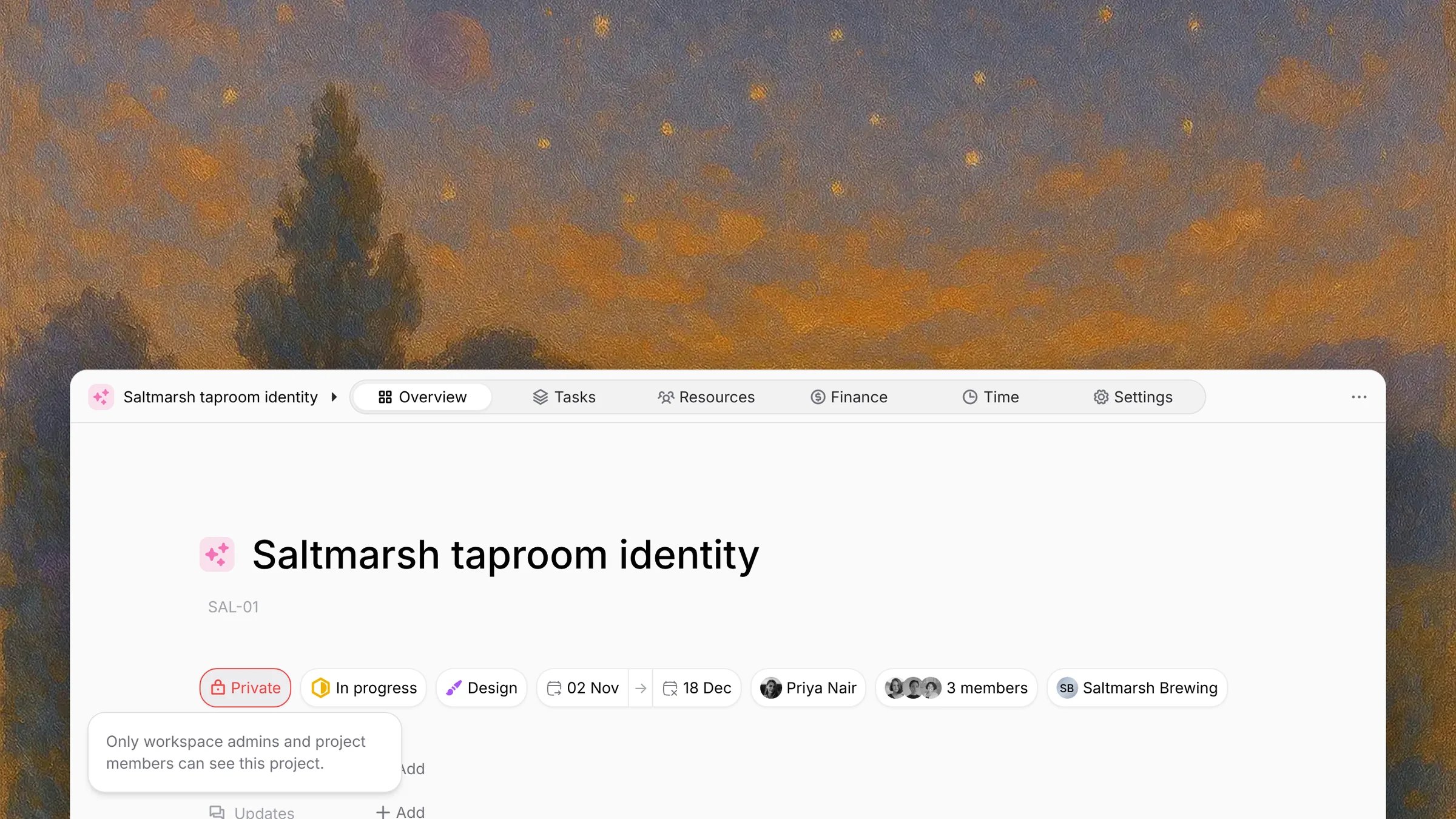
Only Admins and Managers can create projects. Making a public project private
hides all its existing data from non-members immediately.
Who can see a project
Public project: visible to everyone in the workspace, in navigation, search, and the workspace overview. Private project: visible only to:- Admins, who always have full visibility
- Explicit project members, meaning users added to the project with a Member or Lead role
- See the project in the sidebar or workspace overview
- Find it through search
- Access it via a direct link or API call
- See tasks, comments, attachments, or any other data belonging to that project
If you are not a member of a private project and not an Admin, the project
does not exist for you.
Visibility by workspace role
Content inherits visibility
Tasks, comments, attachments, phases, and all other data in a private project inherit its visibility. Do not mark tasks private individually. Non-members cannot see the tasks in task lists, search, or by URL. Tasks with no project are visible to all workspace members, subject to normal role permissions. A person who is not a project member but is assigned to a task in a private project can see that task.FAQ
What happens when I make an existing project private?
What happens when I make an existing project private?
All content inside the project immediately becomes hidden from non-members.
Only users who are already project members (and Admins) will continue to see
it.
Can someone find a private project by guessing the URL?
Can someone find a private project by guessing the URL?
No. Private projects are filtered at the API level. Requesting one you are not
a member of returns “not found”, the same as a project that does not exist.
Do I need to mark individual tasks as private?
Do I need to mark individual tasks as private?
No. Tasks inherit visibility from their project.
What about tasks that are not in any project?
What about tasks that are not in any project?
Tasks without a project association are visible to all workspace members,
subject to normal role permissions.
Can a Guest be added to a private project?
Can a Guest be added to a private project?
Yes. If a Guest is added as a project member, they can see that private
project and its contents through guest-accessible features, such as viewing
tasks and projects they are assigned to.
Workspace roles
See how workspace roles interact with private project visibility.