
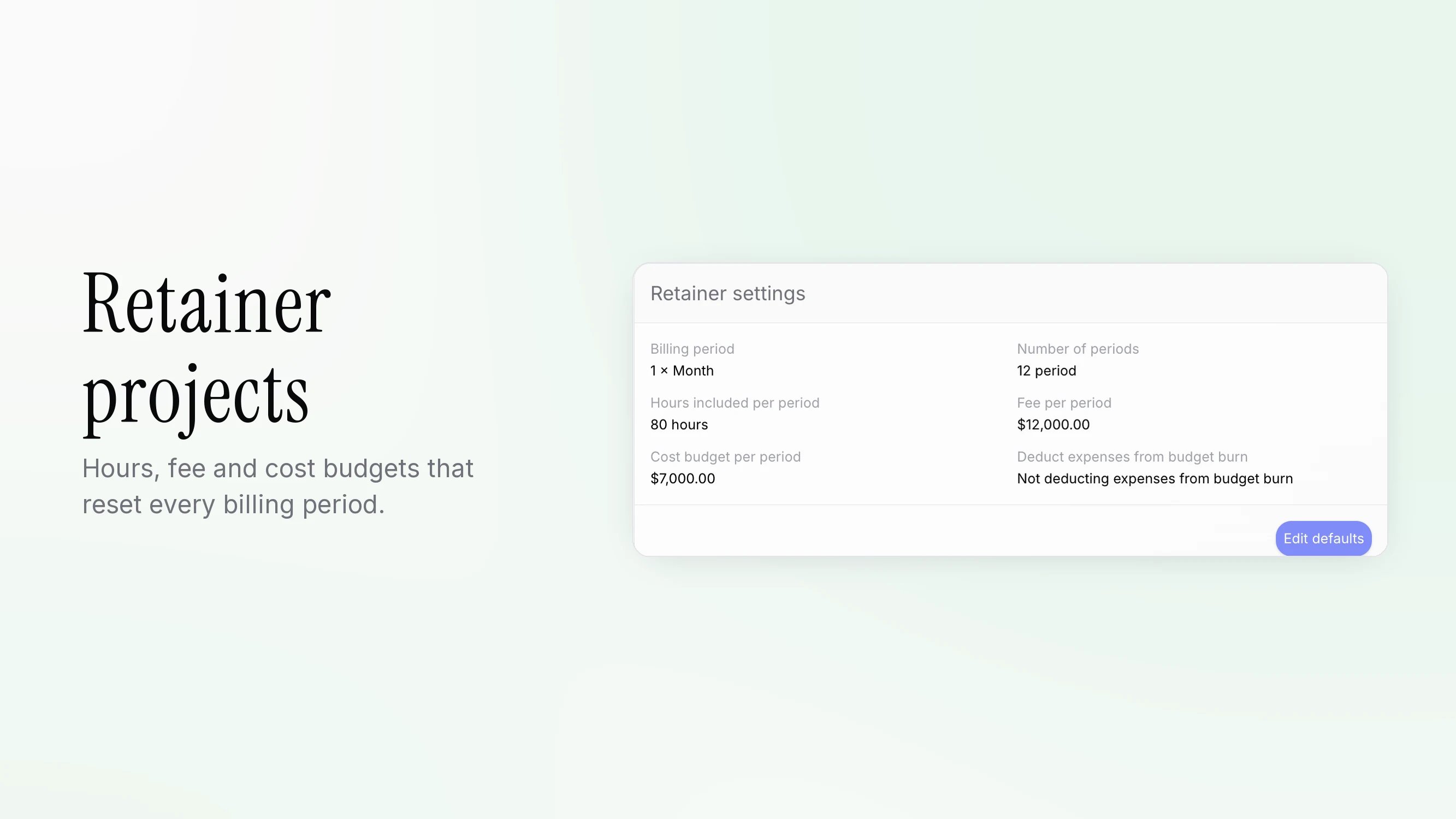
A retainer is a project billed on a recurring schedule. Each period has its own budget for hours, fee, and cost, so you see margin per period instead of one blended number for the whole engagement. Retainer settings with billing period, hours, fee and cost budget per period Admins and managers run delivery. Admins and finance members handle money.

Create a retainer

There are two ways to start.
  • In Create project, pick the Retainer tab. Set up retainer opens.
  • On an existing project, open Settings, go to the Retainer section, and click Enable retainer.
The setup has these fields:
  • Billing period: a number and Day, Week, or Month
  • Start date
  • Open-ended toggle, or a number of periods
  • Hours included per period
  • Fee per period
  • Cost budget per period
  • Deduct expenses from budget burn
Monthly periods are named by month, for example “October 2026”. Open-ended retainers start with 6 periods. Click Add period to add more. Unused budget does not roll over between periods.

Track a period

The project gets a Retainer tab with a period selector, including All periods. Its tabs are Overview, Invoices, Tasks, Time entries, and Settings. Period KPIs:
  • Hours used, with hours remaining
  • Revenue booked, with money budget remaining
  • Cost, against the cost budget
  • Profit (billable), with margin
  • Delivery burn
The overview also shows planned vs actual hours and days remaining. Time, expenses, and invoices count toward the period their date falls in. If work falls outside every period, a warning reads “This project also has X of work worth Y outside any retainer period”. To adjust a single period:
  • Edit budgets changes hours, money, and cost.
  • Link invoices attaches invoices to the period.
  • Create task assigns a task to a period.

Edit defaults

In retainer settings, Edit defaults changes the budget template. Save applies to upcoming periods only. Save and override all periods rewrites every period. The project budget for money and hours equals the sum of all period budgets, and it is locked: “Budget set by retainer: Equals the sum of all retainer period budgets. Edit the periods to change it.” The cost budget is not part of the project budget.

Recurring retainer tasks

Use these for work that repeats every period, such as a monthly report. In All periods, open the Recurring tasks card and click Add recurring task. Pike creates one task per period. Fields: Task title, Team, Assignee, Priority, Billable, Estimated hours, Due relative to (Period start or Period end), Due offset (days), Start offset (days), and Starts from period #. Edits flow forward to upcoming periods unless someone changed a task by hand. Deleting a template stops future periods and keeps the tasks that already exist. These are separate from general recurring tasks. See Recurring tasks and invoices. See Revenue recognition for how retainer revenue is recognized and Invoicing for billing each period.