
Overview
Templates in Pike help you standardize your project creation process and ensure consistency across your workspace. With project templates, you can pre-define project structures, tasks, phases, and team assignments that can be reused when creating new projects.Project Templates
Project templates allow you to create a blueprint for common project types in your organization. When creating a new project using a template, all pre-defined elements will be automatically created, saving time and ensuring consistency.Creating a Project Template
- Navigate to
Settings->Templates->Project Templates - Click the “Create Template” button
- Fill in the template details:
- Template name
- Description
- Default project settings
- Tasks and phases
- Team assignments
Template Components
Basic Information
- Template Name: A descriptive name for the template
- Description: Details about when and how to use this template
- Category: Optional grouping for better organization
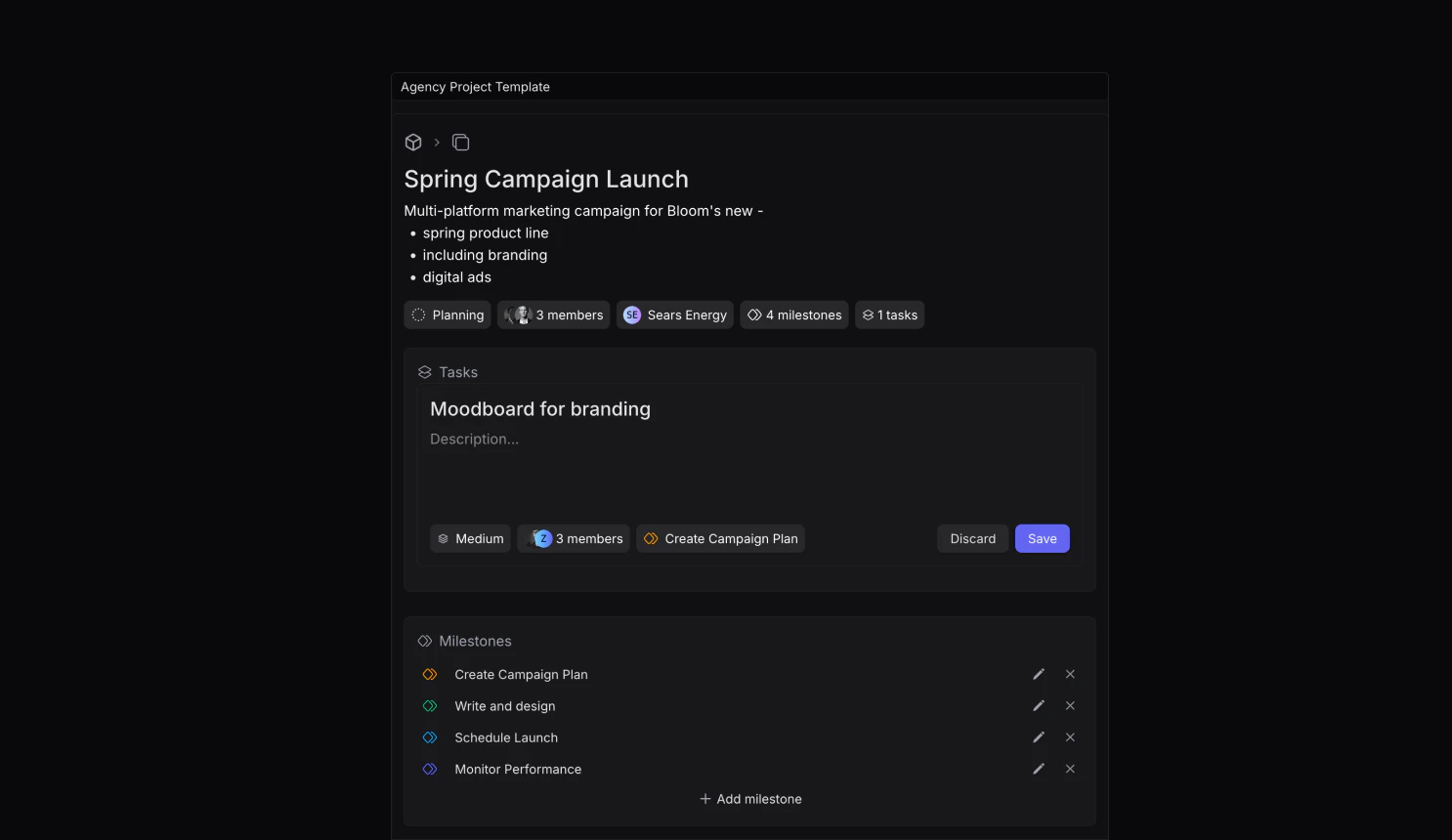
Tasks
You can pre-define tasks that will be automatically created when using the template:- Task name and description
- Priority levels
- Start and due dates
- Team or individual assignments
- Associated phases
- Task dependencies
Phases
Create phase structures to help track project progress:- Phase name
- Target completion date
- Associated tasks
- Dependencies
Using Templates
- When creating a new project, if you have templates available, you will see a dropdown to select a template.
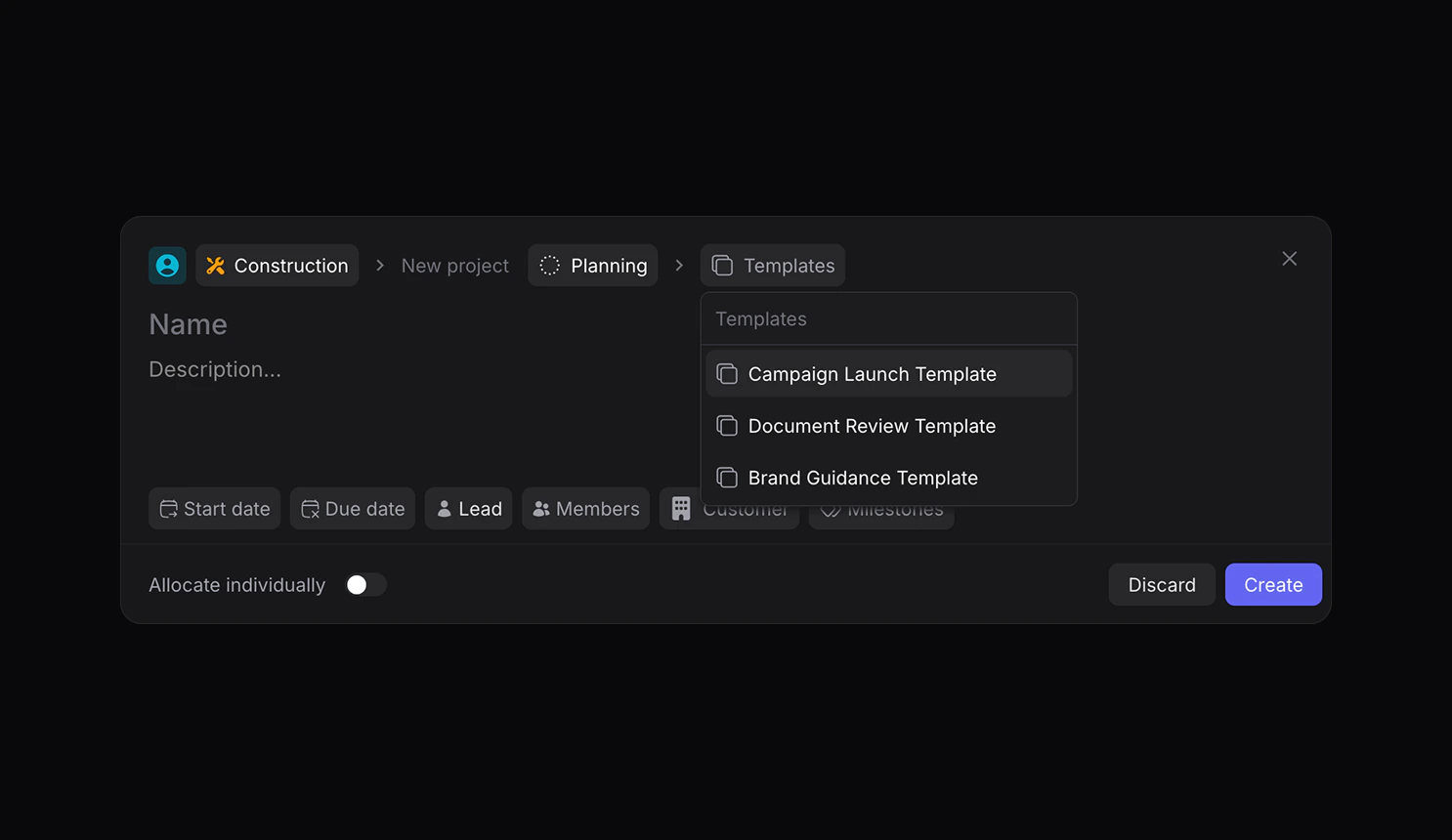
- Choose the desired template from the list
- Customize any pre-filled information as needed
- Click “Create Project”
- Pre-defined tasks and phases
- Team assignments
- Start and due dates
- Priority settings
Creating a Project
Learn more about projects and creating a project here.
Managing Templates
Templates can be managed from the Settings page:- Edit existing templates
- Duplicate templates for variations
- Archive unused templates
- Set default templates for project types
Best Practices
- Start Simple: Begin with basic templates and expand them based on usage
- Regular Updates: Review and update templates based on project learnings
- Standardize Naming: Use consistent naming conventions for tasks and phases
- Document Usage: Include clear descriptions of when to use each template
- Team Input: Gather feedback from project managers and teams to improve templates
Template Permissions
Access to template management is controlled by user roles:- Admins: Full access to create, edit, and delete templates
- Managers: Can use templates