


Pike and
Discord
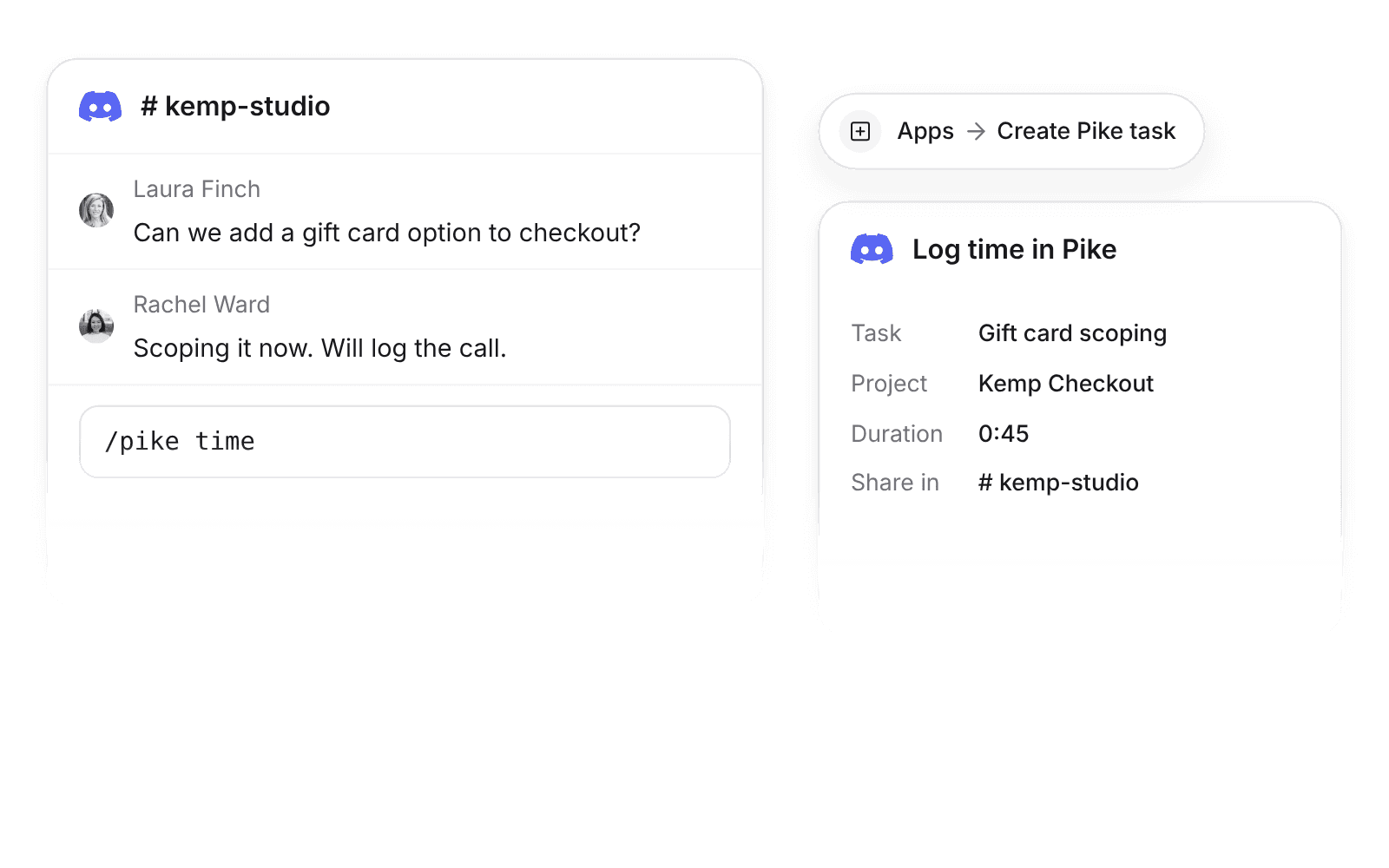
Get Pike notifications in Discord, and log time or create tasks with /pike.

At a glance
- Setup
- An admin adds the Pike app to one server. Each member connects a profile.
- Command
- /pike task [title] creates a task; /pike time logs time.
- Permissions
- Members act with the same permissions as in the Pike web app.
- Documentation
- Discord docs
What syncs between Discord and Pike
| In Discord | What it does |
|---|---|
| Direct message from the Pike app | Notifications for assignments, mentions, approvals, and followed work |
| /pike task | Opens the create task form, with the title prefilled |
| /pike time | Opens the log time form for one of your tasks |
| Apps → Create Pike task on a message | Task prefilled from the message, with a link back to it |
Set up and use Discord
Connect
- 1.An admin goes to Workspace settings → Integrations → Discord and adds the Pike app to your Discord server.
- 2.Each member connects their Discord account under Settings → Connections.
- 3.Type `/pike` in any channel the Pike app can see to create a task or log time.
How to use it in your business
- Log time where client work is discussed. Teams that run client channels in Discord log hours in the moment instead of rebuilding the week on Friday.
- Turn requests into tracked work. A request in a shared channel becomes a Pike task, so out-of-scope work gets logged and billed.
Limits
- One Pike workspace connects to one Discord server.
- Each member connects their own Discord profile before using /pike.
- Private projects never appear in a server channel.
Setup steps and field mappings: Discord docs.
Discord integration questions

See Pike and Discord working together on your data.
 ISO 27001
 GDPR
 SOC 2 Type II
Built to keep sensitive client data secure and private.