


Pike and
PayFit
Sync collaborators and approved absences from PayFit, and plan with accurate capacity.

At a glance
- Direction
- PayFit to Pike, every 3 hours. On the Enterprise plan, changes sync in real time.
- Who sets it up
- A workspace admin, by signing in to a PayFit admin account and authorizing Pike for one company.
- Source of truth
- PayFit, for person fields and absences.
- Plan
- All plans
- Documentation
- PayFit docs
What syncs between PayFit and Pike
| PayFit | Pike | Notes |
|---|---|---|
| Collaborator | Member | Matched by email |
| Contract start date | Hire date | |
| Contract end date | Member status | A collaborator whose contract ends becomes a deactivated member. History is kept |
| Approved absences | Time off | By mapped absence type |
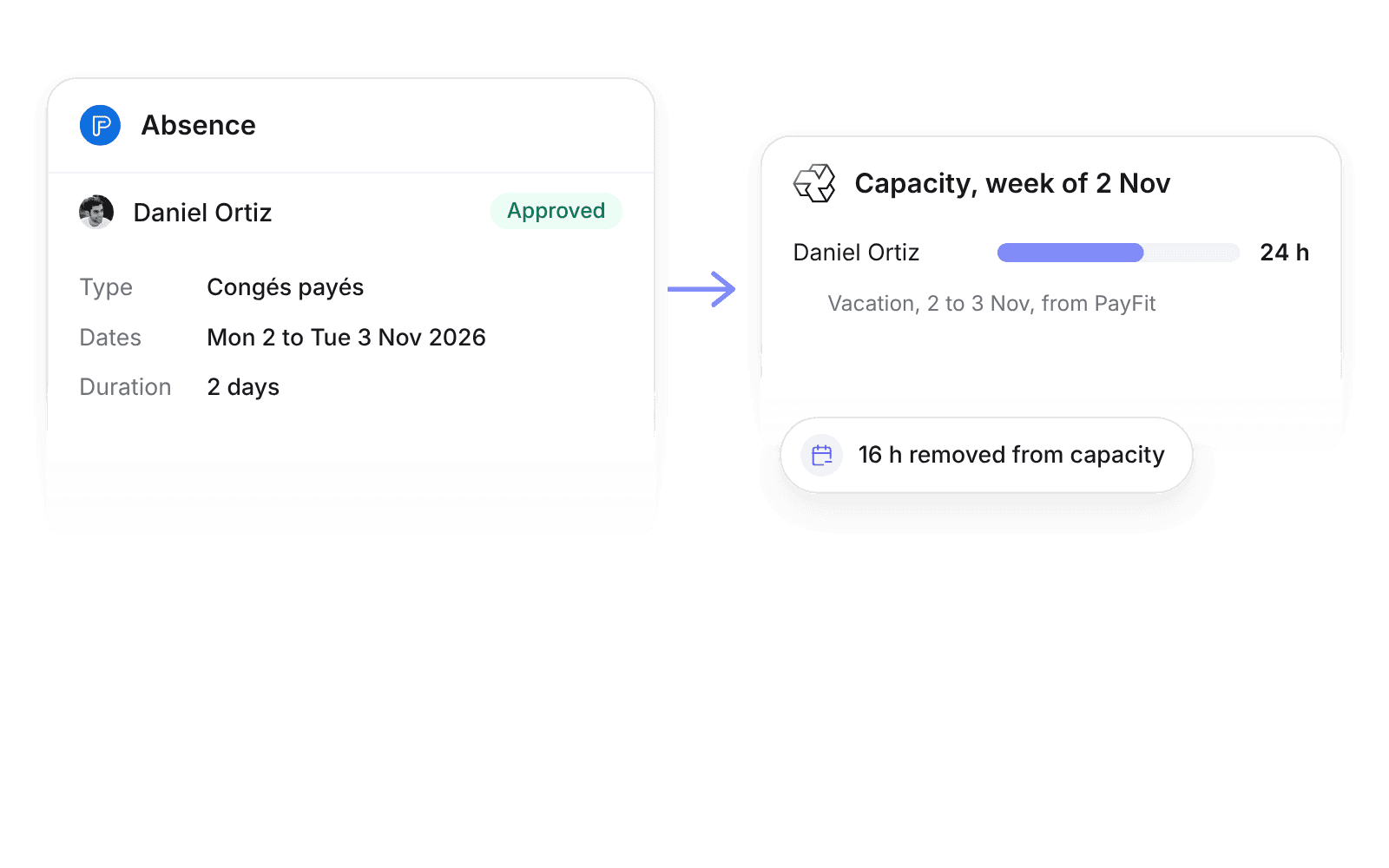
Approved time off creates Pike time off of the mapped type and comes off capacity. Pending or rejected requests do not sync.
Set up and use PayFit
Connect
- 1.Go to Workspace settings → Integrations → PayFit and click Add integration.
- 2.Sign in to your PayFit admin account and authorize Pike for your company.
- 3.Map absence types to Pike time off types, then click Import data.
How to use it in your business
- Plan around approved absences. Approved PayFit absences come off capacity, so nobody books people who are out.
- Offboard without a checklist. A contract that ends in PayFit deactivates the member in Pike, and their history stays on every project.
Limits
- Pike does not write to PayFit or send hours to PayFit payroll.
- Pending, declined, or canceled absences do not sync.
- One Pike workspace connects to one PayFit company.
Setup steps and field mappings: PayFit docs.
PayFit integration questions

See Pike and PayFit working together on your data.
 ISO 27001
 GDPR
 SOC 2 Type II
Built to keep sensitive client data secure and private.