


Best project management software for creative agencies
 Maya Lindqvist

By Tom Gallagher
Content Writer at Pike
Share

An account manager spends Monday morning answering the same question from six clients: where are we on the project? Each answer means opening the project tool, checking with a designer, and writing an email. By Thursday two of those clients ask again. The information exists the whole time, but the client has no way to see it without asking.
With client portal software, clients can see it for themselves. This guide covers what a portal has to do, which features matter most, how to choose between a portal built into your delivery tool and a standalone one, and how to introduce it to clients.
A client portal is a login where each client sees the current state of their own work. Clients should be able to answer four questions there without anyone on your team writing a message: what is happening now, what is waiting on the client, where the latest files are, and what has been spent or billed.
Most teams start with a shared drive and email. That covers file storage and nothing else. A folder has no status, a client's approval is buried in an email thread that only one person can find, and nobody is sure which file is the current version.
The test for a portal is whether the client stops asking. If clients still email for status after the portal is live, the portal is missing information or showing information that is out of date. For that reason, check where the portal's data comes from before you look at its design.
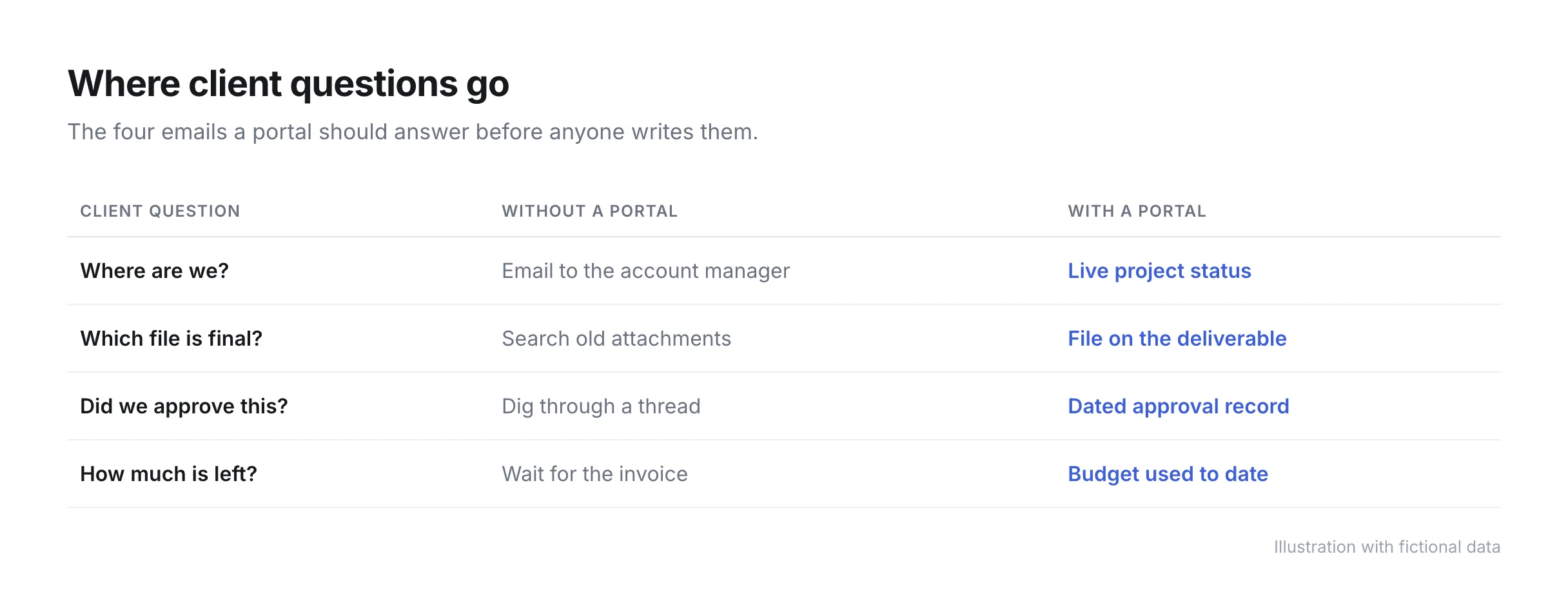
A client portal needs four things: status visibility, approvals, file sharing, and billing visibility. With each one in place, your team stops answering one kind of recurring email.
| Feature | What the client gets | What your team gets |
|---|---|---|
| Status visibility | Current progress, upcoming milestones, and what is late | Fewer status emails and calls to answer |
| Approvals | One place to review work and approve or request changes | A dated record of each approval, tied to the deliverable |
| File sharing | The current version of every deliverable and brief | An end to version confusion and re-sent attachments |
| Billing visibility | Budget or retainer hours used, and invoices issued | Fewer invoice queries and earlier warning of budget conversations |
| Requests and comments | A way to raise a question or request next to the work | Requests arrive where the team works, with context attached |
| Permissions | Access to their own projects only | Internal notes, costs, and other clients stay private |
The portal should show project status from live delivery data. If someone has to write a status update into the portal each week, people skip it in busy weeks, which are the weeks clients most want it. Look for milestones, task progress, and due dates that come straight from the project plan, with control over which tasks the client can see.
The portal should let a client approve a deliverable or request changes in one step, and it should record who approved what and when. You will want that record when a client later disputes a direction they signed off. The portal should also show which approvals are waiting on the client, which makes a delay on their side visible to both parties. The approval workflow glossary entry covers how sign-off steps are structured.
The portal should hold the current version of each deliverable next to the task or milestone it belongs to. A file attached to the work it relates to is easier to find than a file in a folder tree. Check the upload limits and whether the client can upload files as well, because briefs and brand assets come from their side.
The portal should show the client how much of the budget or retainer has been used, and ideally the invoices issued. A client who can see that 70% of the month's retainer hours are used in week two will start the conversation about priorities themselves. Without that view, the conversation starts when the invoice arrives.
Decide in advance how much financial detail clients see. Hours and budget used are usually enough. Internal cost rates and margin should never be visible in a portal.
A portal built into your project or PSA platform shows live data with no extra work. A standalone portal gives you more control over branding and layout, and someone has to keep it up to date.
| Question | Built-in portal | Standalone portal |
|---|---|---|
| Where does status come from? | The project plan and time entries, automatically | Manual updates or an integration you maintain |
| Setup effort | Low, since projects and clients already exist | Higher, since projects and files are recreated or synced |
| Branding and layout | Limited to what the platform allows | Usually flexible, often with a custom domain |
| Billing data | Available if the platform handles budgets and invoices | Needs a connection to your finance tool |
| Cost | Often included in a plan you already pay for | A separate subscription |
| Risk | Depends on the platform's portal being good enough | Portal and delivery data drift apart when updates are missed |
For most teams the built-in option is the better starting point, because the main failure of a portal is stale information. A standalone portal makes sense when the client experience is part of what you sell, for example a productized service where the portal is the main point of contact, or when your delivery tool has no client access at all.
A generic tool, such as a shared workspace in a document or wiki app, is a middle option. It works for a handful of clients. It stops working when you have more clients than someone can update by hand, or when clients need approvals and billing visibility that a document cannot provide.
Choose a portal by the questions your clients ask most. Run four checks:
Roll the portal out to two or three clients first, with one job to do, and expand from there. Clients adopt a portal when it is the fastest way to get something they already want.
A rollout that works for most teams:
Then move existing clients over one at a time, starting with the ones who ask for status most often.
Measure adoption with one number: status emails per client per month, before and after. If the number does not fall, check whether clients can find in the portal what those emails were asking for.
Pike includes a client portal where clients can check progress on their projects without asking the team. The customers feature page shows the portal alongside deals and profitability per customer, and pricing lists which plans include it.
For the wider picture of how client context connects to delivery work, see our guide to the client management interface. To see what your clients would see on one of your own projects, book a 15-minute walkthrough.
Share
 ISO 27001
 GDPR
 SOC 2 Type II
Built to keep sensitive client data secure and private.