


Pike and
Justworks
Sync employees, contractors, and approved time off from Justworks, and cost projects at real pay rates.

At a glance
- Direction
- Justworks to Pike for people, time off, and pay rates, every 3 hours.
- Who sets it up
- A workspace admin, with a Justworks admin who authorizes the Pike app.
- Source of truth
- Justworks, for person fields.
- Plan
- All plans
- Documentation
- Justworks docs
What syncs between Justworks and Pike
| Justworks | Pike | Notes |
|---|---|---|
| Member (employee) | Member | Matched by work email |
| Member (contractor) | Contractor member | Matched by work email |
| Department | Team | |
| Job title and manager | Position and manager | |
| Employment status | Member status | A terminated employee becomes a deactivated member. History is kept |
| Approved time off | Time off | Each policy maps to a Pike type |
Approved time off creates Pike time off of the mapped type and comes off capacity. Pending or rejected requests do not sync.
Set up and use Justworks
Connect
- 1.Go to Workspace settings → Integrations → Justworks and click Add integration.
- 2.Sign in as a Justworks admin and approve access for Pike.
- 3.Map time off policies to Pike time off types, then click Import data.
How to use it in your business
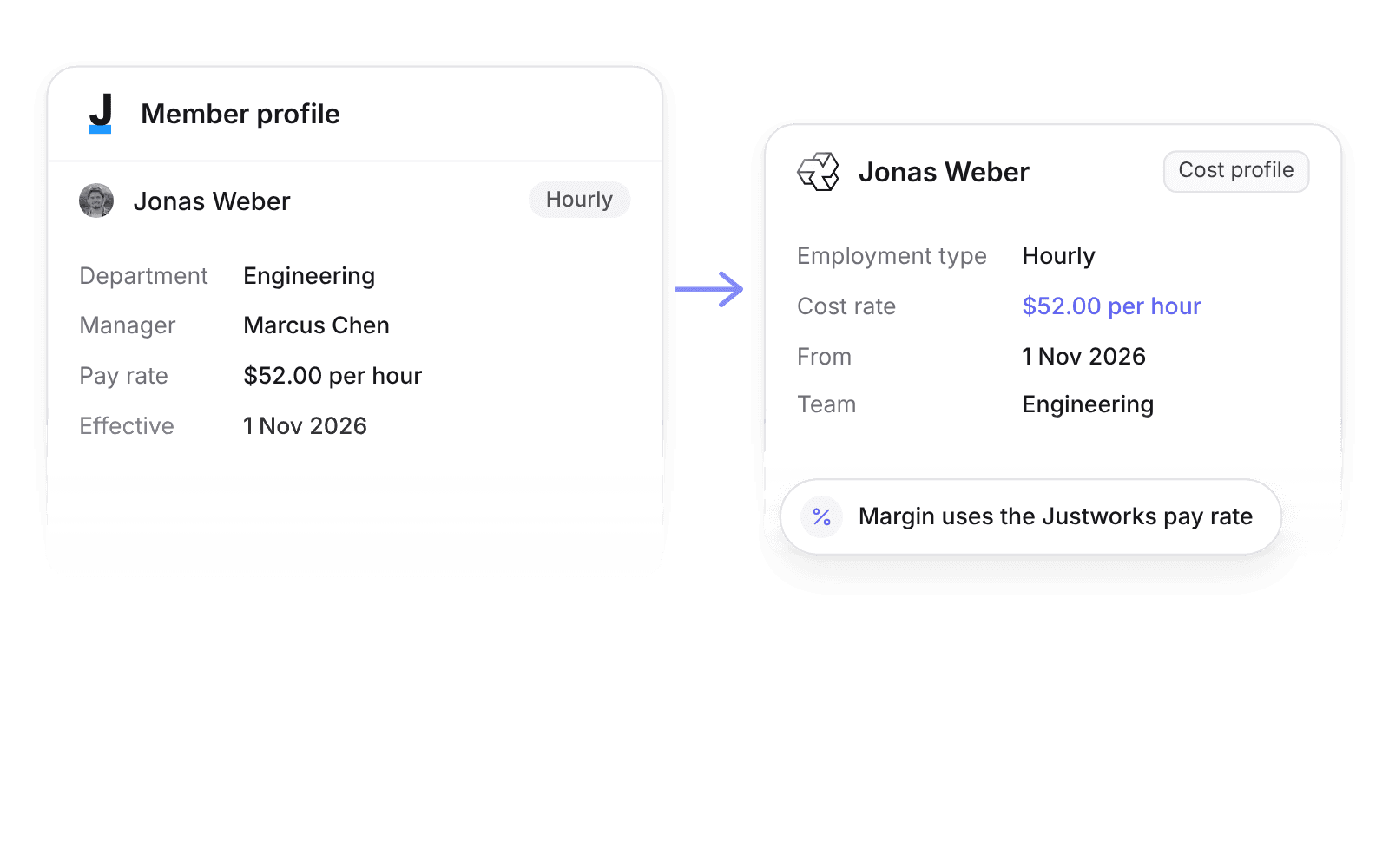
- Cost projects at the rates you pay. With compensation sync on, Justworks pay rates set cost profiles, so project margin uses payroll numbers.
- Plan around approved PTO. Approved Justworks time off comes off capacity, so nobody books people who are out.
Limits
- Pike does not write to Justworks or send hours to Justworks payroll.
- Pending or denied time off requests do not sync.
- Compensation sync is off until an admin or finance user turns it on.
Setup steps and field mappings: Justworks docs.
Justworks integration questions

See Pike and Justworks working together on your data.
 ISO 27001
 GDPR
 SOC 2 Type II
Built to keep sensitive client data secure and private.